Your cart is empty.
Browse plugins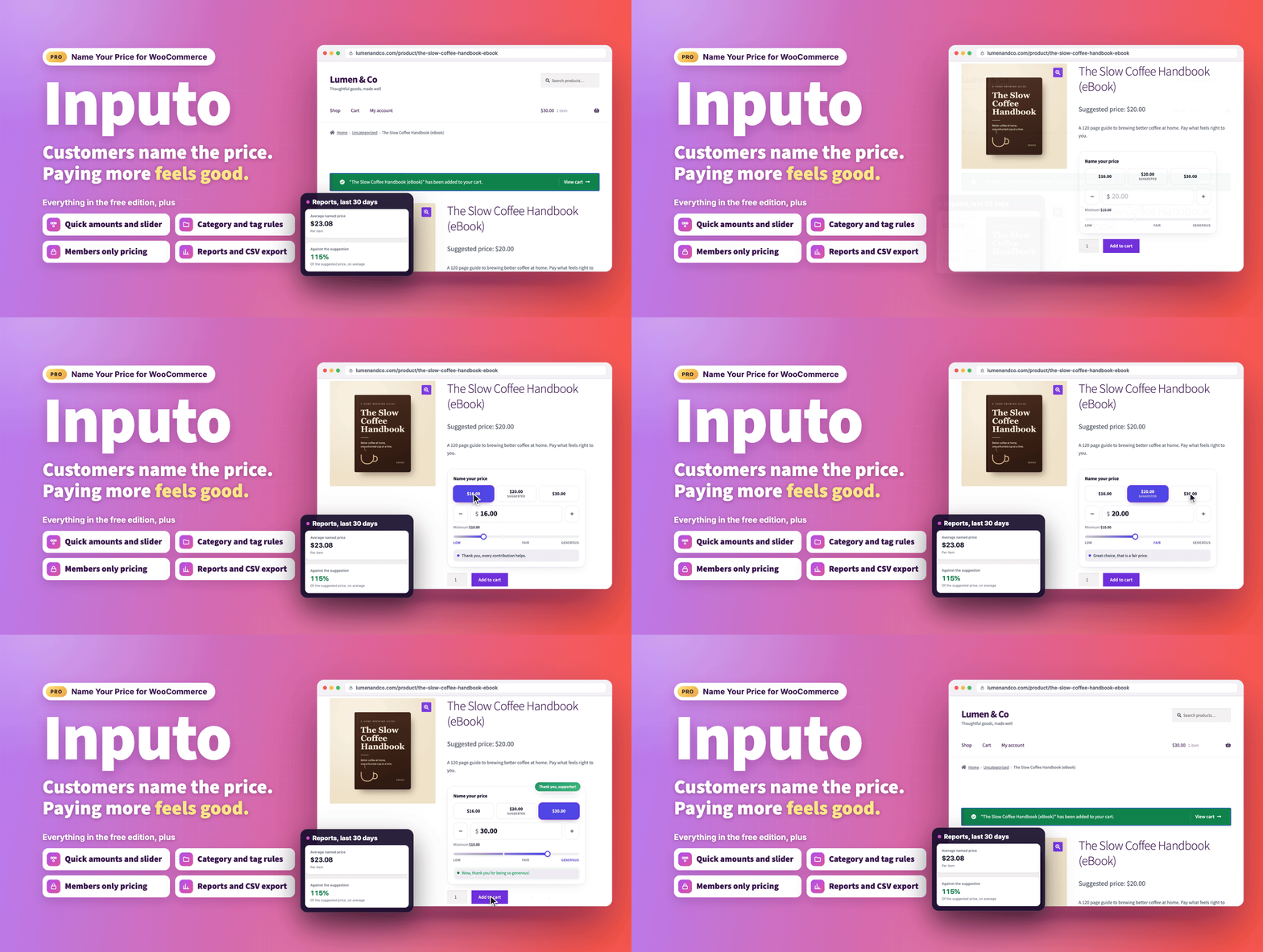
Overview
Let customers choose what they pay, and make paying more feel good.
Inputo Pro turns your WooCommerce products into pay what you want products. You set the lowest amount you accept and the amount you suggest, your customers choose, and a friendly price meter guides them. The chosen price then runs through cart, checkout and the order like any other WooCommerce price.
Pro includes everything in the free edition and adds the tools busy shops ask for: one tap amounts, a price slider, category rules with dates, members only pricing, per product wording, WooCommerce Subscriptions and currency switcher support, a price box for any page, a celebration for generous customers and reports that show how customers respond to your suggestions. It suits creators selling ebooks, courses, music and templates, studios taking support, charities and clubs taking donations, and small shops running pay what you can days.
- Live demo: Pro version, free version
- Documentation: Pro version, free version
- Support: propluginslab.io/support
What's new in 1.4.0 (October 17, 2026)
- Name your price on subscriptions. With WooCommerce Subscriptions, customers can name the price of a simple or variable subscription, charged at sign-up and at every renewal.
- Prices in the shopper's currency. With WPML WooCommerce Multilingual, Aelia, CURCY or WOOCS, amounts show in the shopper's currency and the typed amount is charged once, in that currency.
- A price box on any page. The
[[inputo_price_box]]shortcode and the Name your price box block place a complete name your price form on a donation or landing page. - Grouped products. Each named price item in a grouped product now gets its own price box.
- Dates for rules and products. Give a rule start and end dates, or let a single product take a named price only between two dates, such as a pay what you can weekend.
- Variable products on block themes. In the Add to Cart with Options block the price box now follows the chosen variation, so named price variations can be bought.
- Reports after refunds. Takings leave out partial refunds, averages count items rather than order lines, and each currency is shown on its own.
- A fairer average paid line. It now counts separate buyers, so one customer buying several times cannot reveal what they paid.
- Rules that reach what you expect. Rules include child categories, the product count matches what a rule does, and the category and tag pickers search as you type on shops with more than 500 terms.
- More bulk actions and portable settings. New bulk actions keep products out of rules or let them follow rules again, and settings files match categories and tags by slug on the other shop.
After updating to 1.4.0, press Rebuild now once on the Tools screen. Reports then count orders recorded before the update with their refunds, per item. The Reports and Tools screens remind you until it is done.
How it works
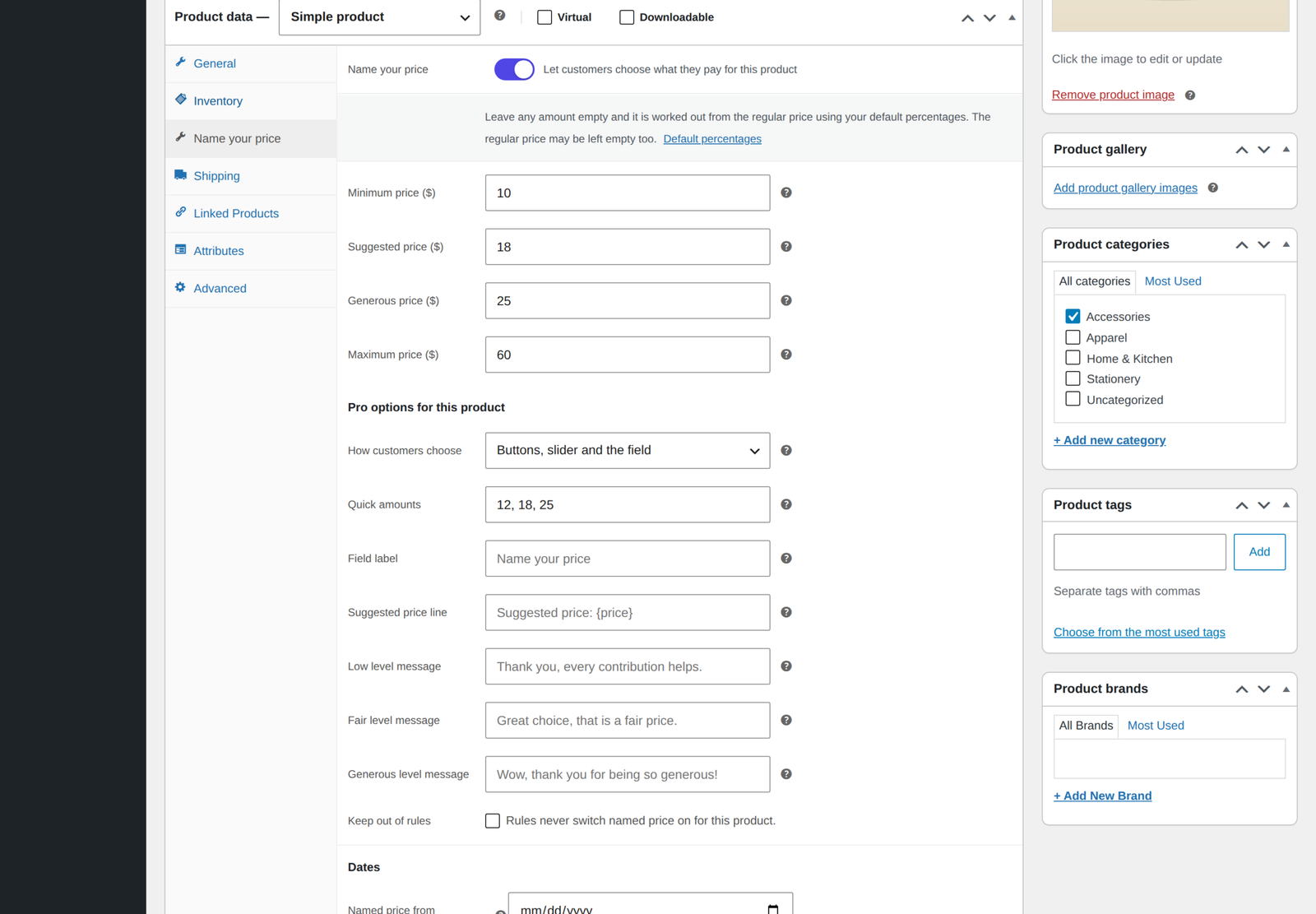
- Switch it on. Open the Name your price tab on a product, or tick Name your price on a variation, or let a rule switch it on for a whole category or tag.
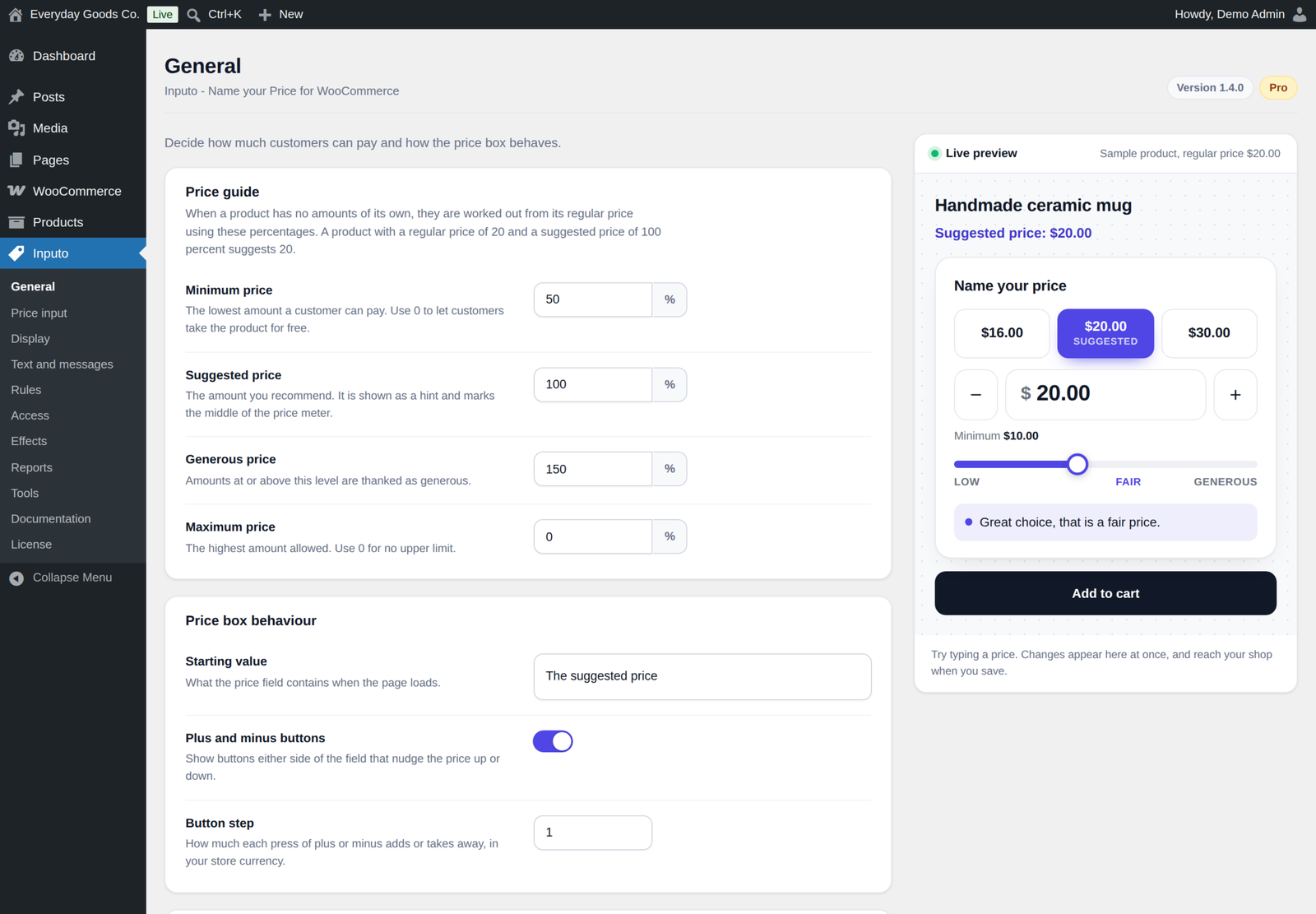
- Set the price guide. Type a minimum, suggested, generous and optional maximum amount, or leave them empty and let them be worked out from the regular price with your percentages.
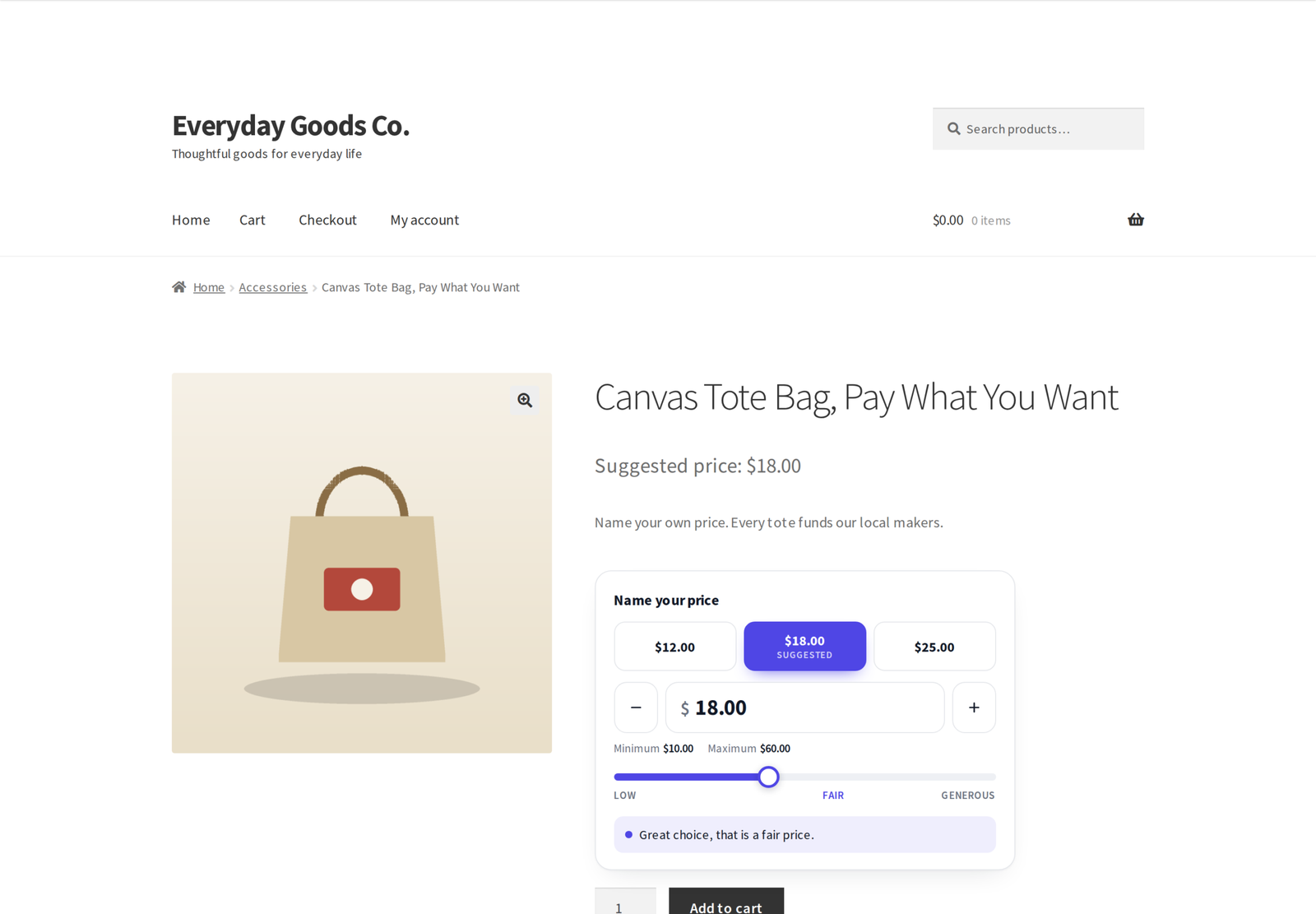
- The customer chooses. They type an amount, tap a quick amount button or drag the slider, and the meter and messages respond as they go.
- Checkout as normal. The amount is checked on the server and carries through cart, checkout and the order like any other price.
A price guide, not just a box
- Four amounts per product. Minimum, suggested, generous and an optional maximum, per product or per variation.
- Shop wide percentages. Leave an amount empty and it is worked out from the regular price with the default percentages on the General screen, or with a rule's own percentages.
- No regular price needed. Products with no regular price at all can still be sold at a named price.
- Free orders only on purpose. A customer can pay nothing only when you allow it: a minimum of exactly zero on the product, or a minimum percentage of 0 that applies to it, on the General screen or in a rule. An empty minimum with a higher percentage never allows a free order line.
- Starting value. The field can start empty, at the suggested price or at the minimum.
- Plus and minus buttons with a step you choose, and arrow key support.
A price meter that encourages
As the customer types, a bar fills and a short message thanks them. There are three levels, low, fair and generous, and you name each one and write its message yourself. Every word the customer sees, from the field label to the error messages, can be changed on the Text and messages screen.
Quick amount buttons and a price slider
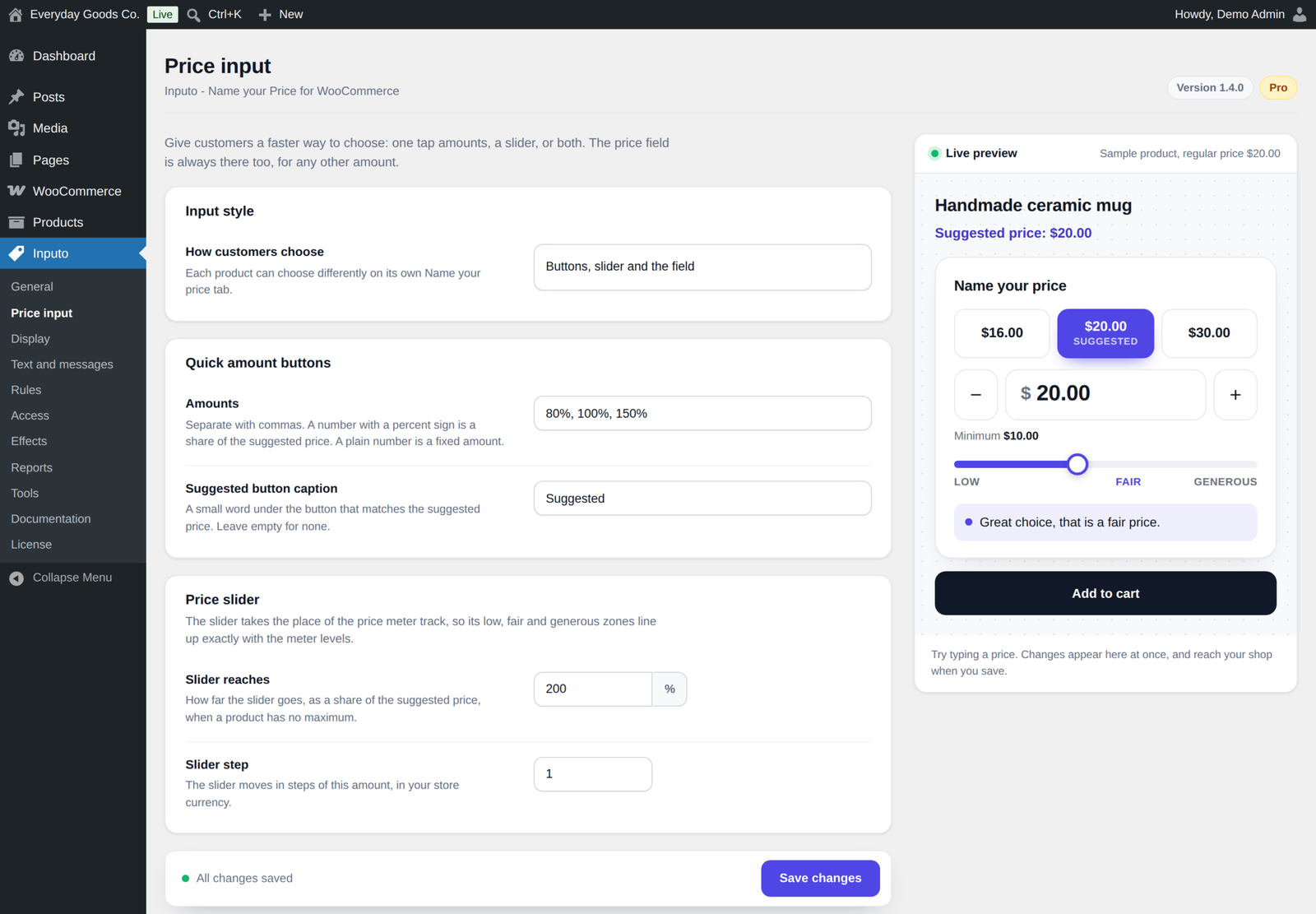
- Quick amount buttons. One tap amounts under the price box, written as shares of the suggested price (80%, 100%, 150%) or as fixed amounts (5, 10, 25). Up to eight buttons, and any below the minimum or above the maximum are left out automatically.
- A caption on the suggestion. The button that matches the suggested price can carry a small word such as Suggested.
- Price slider. A slider that takes the place of the meter track, with the same low, fair and generous zones. It moves in the Slider step you set on the Price input screen. When a product has no maximum, you decide how far it reaches as a share of the suggested price.
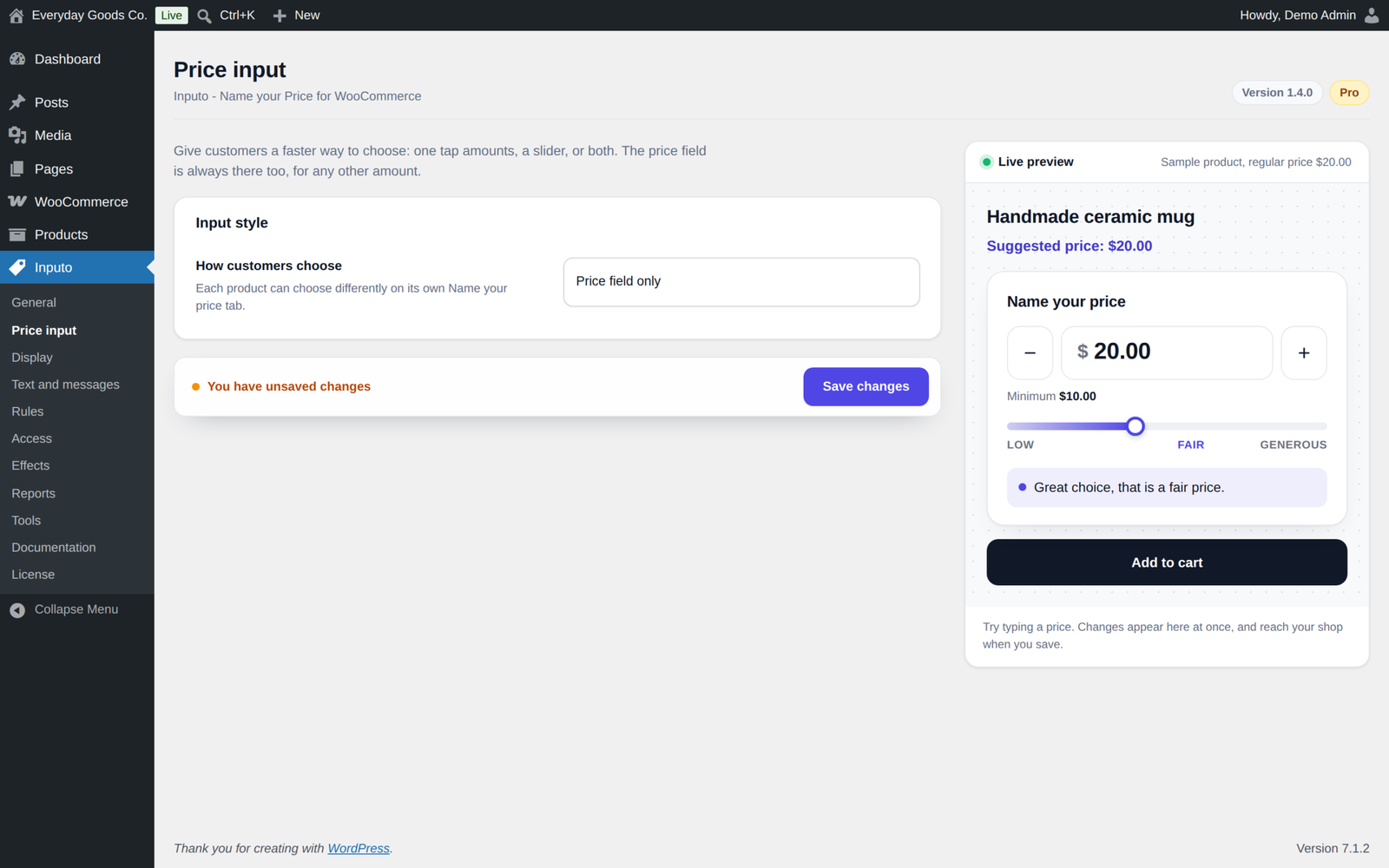
- Mix and match. Choose the field only, buttons and the field, the slider and the field, or all three, shop wide or per product. The price field is always there for any other amount.
Rules and dates
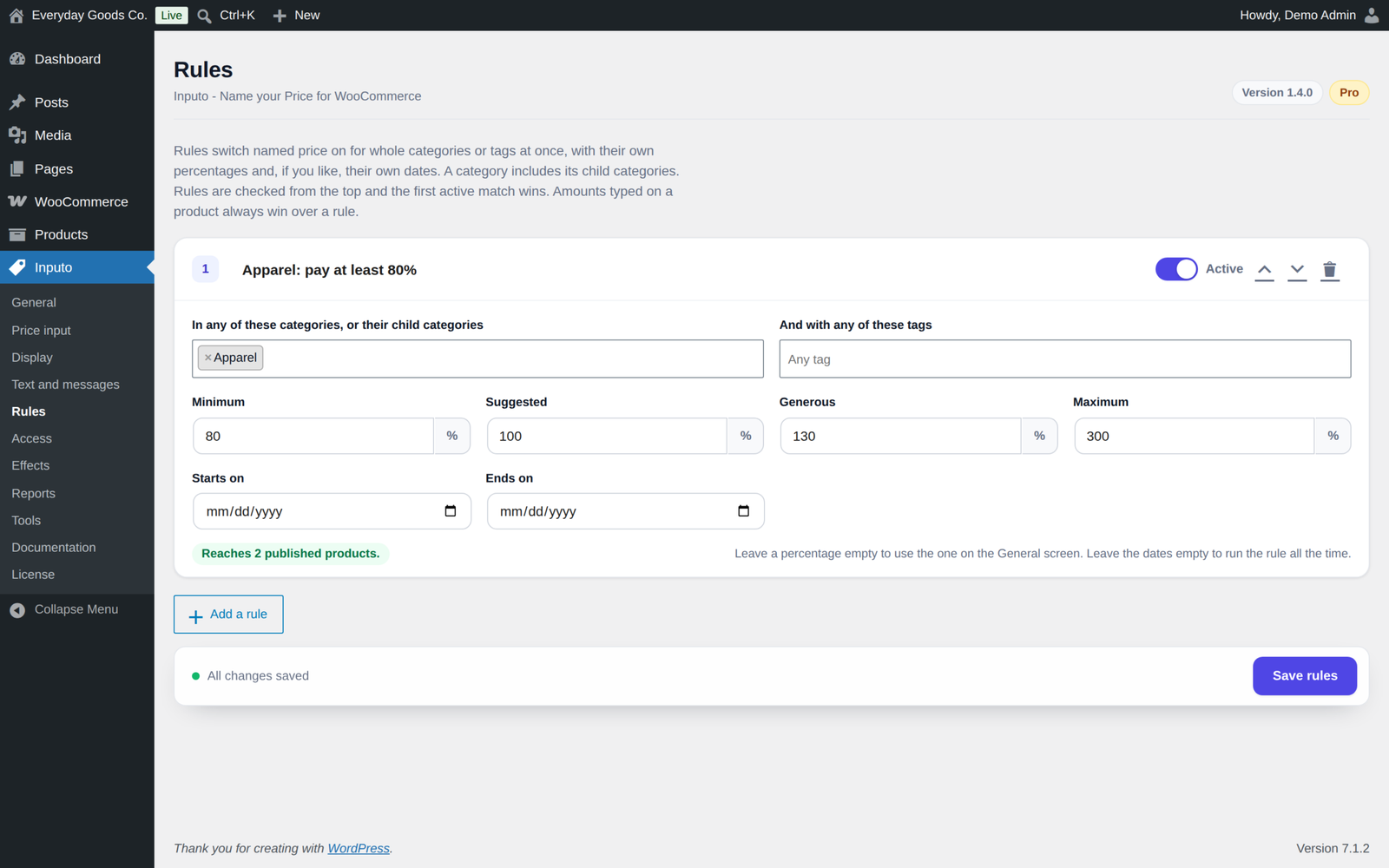
Switch named price on for whole categories, their child categories, or tags, each rule with its own percentages and optional start and end dates. Use one for a category such as Donations or Digital downloads. An empty percentage falls back to the General screen. Dates follow your site's time zone, and both the first and the last day are included.
- Checked from the top. Put rules in the order you choose, and the first active match wins.
- Product amounts always win. Any amount typed on a product still beats the rule.
- Opt out per product. Tick Keep out of rules on any product, or use the bulk action, and the product screen tells you which rule is switching it on.
- See the reach. Each rule shows how many products it reaches, leaving out products kept out of rules and product types a named price does not apply to.
- Dates per product. Run a pay what you can weekend on its own. Outside its dates the product sells at its regular price, or cannot be bought if it has none.
Access by login or role
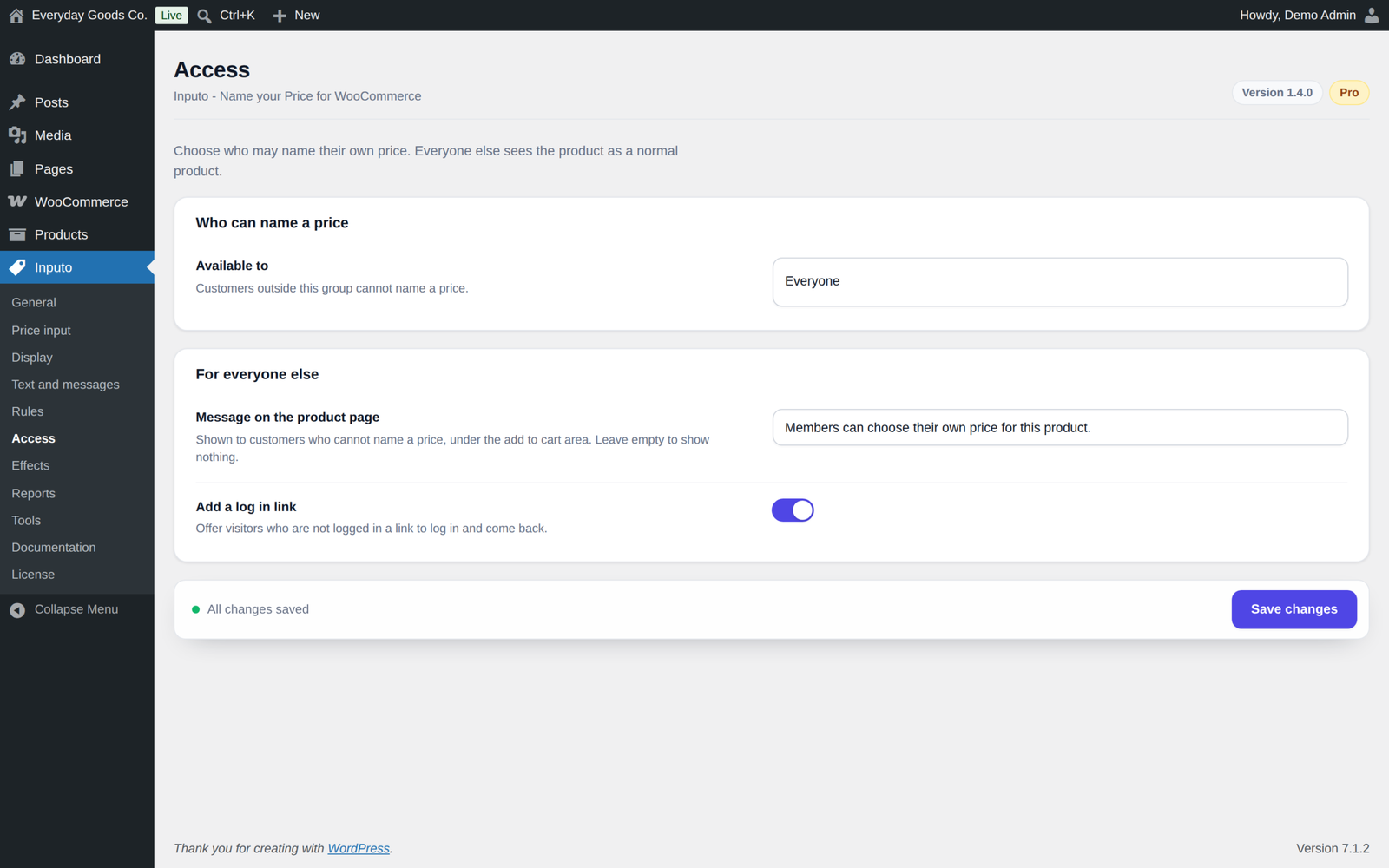
Let everyone, logged in customers, or customers with chosen roles name a price. Everyone else sees a normal product: one with a regular price is sold at that price as usual, and one without cannot be bought. You can show them a message you write, with an optional log in link. On block themes the message appears after the Add to Cart with Options block.
Wording per product
Change the field label, the suggested price line and the low, fair and generous meter messages on any product. Write "Your gift" on a donation and "Name your price" on an ebook. The label and suggested line also change the price line under the title and in product lists. Each product can also choose its own input style and quick amounts, or use the shop setting.
A price box anywhere
A shortcode and a block place a complete name your price form on a donation or landing page. Use [[inputo_price_box id="123"]] or the Name your price box block with the id of a named price product or variation. You can show the product title, a quantity field and your own button text.
Celebration and what others paid
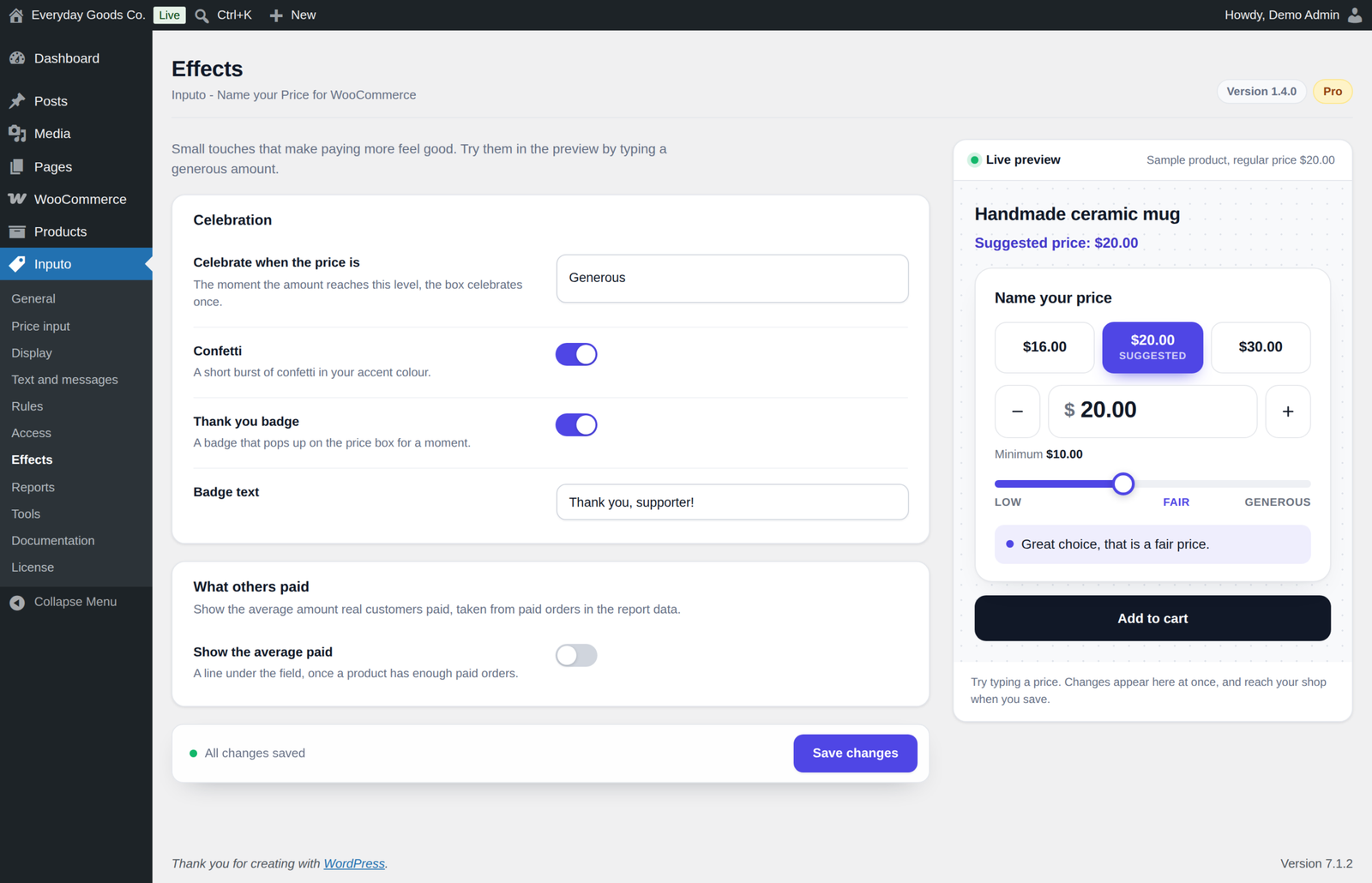
- Celebration. The moment a customer reaches a generous amount, or fair if you prefer, the box celebrates once with confetti in your accent colour and a thank you badge with your own text. It is drawn by the plugin itself, nothing is loaded from another server, and confetti is skipped for visitors who prefer reduced motion.
- What others paid. Show the average real customers paid per item, once a product has enough separate buyers, for example "Customers pay 12.00 on average". You choose how many buyers, never fewer than three. A customer account counts once however often it buys, and each guest order counts once.
Reports
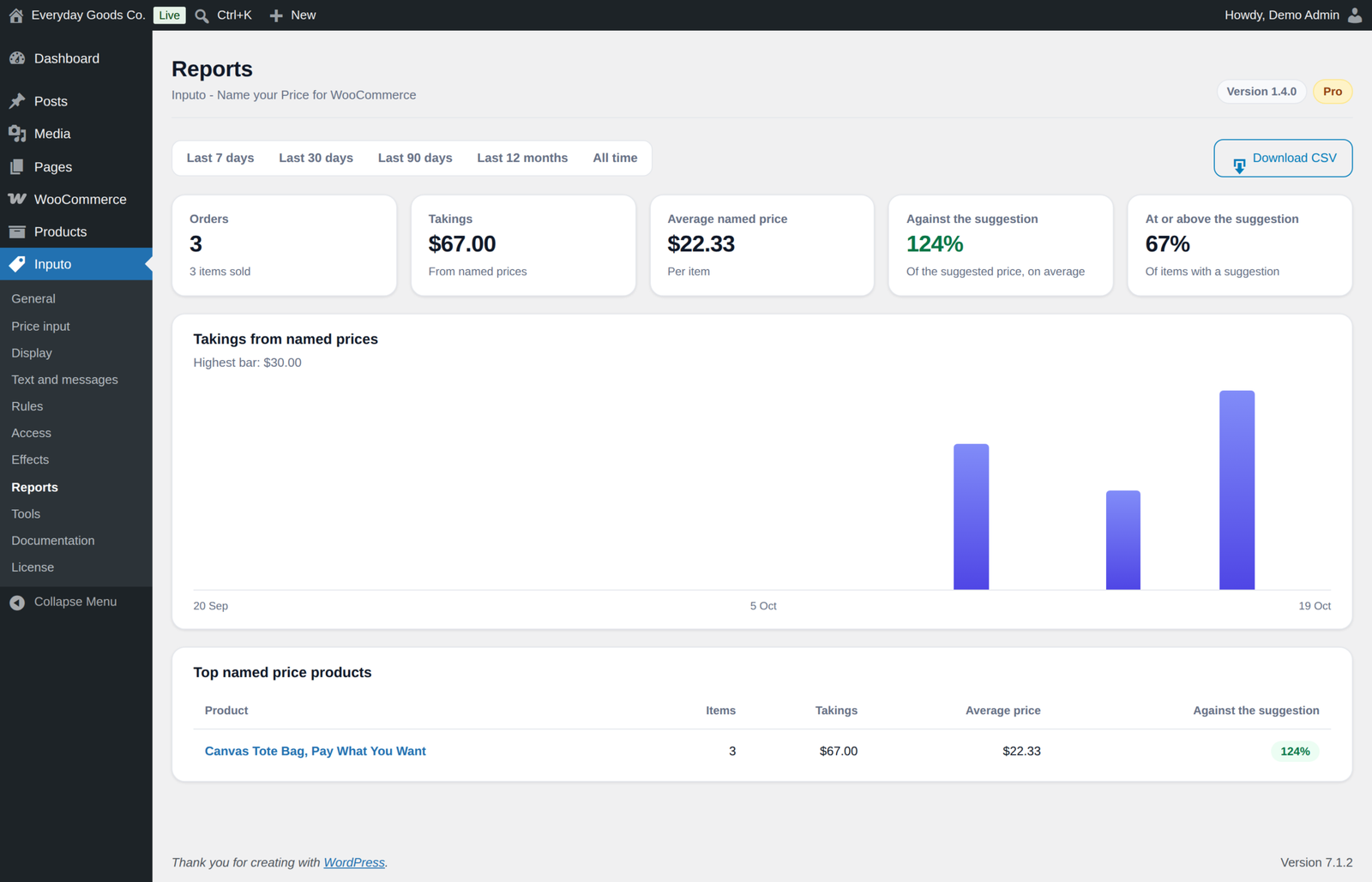
Orders, takings after refunds, average named price per item and how customers compare with your suggestion, per currency, with a chart, top products and CSV export.
- Orders, takings after partial refunds and average named price per item for the last 7, 30 or 90 days, the last 12 months or all time
- How customers compare with your suggestion, on average and as a share paying at or above it, counted per item
- Takings over time as a chart, and your top named price products
- One currency at a time, with a choice of currency when orders came in more than one
- CSV export of every named price line, with cells that could run as spreadsheet formulas escaped
A report line is recorded when an order with a named price is paid, updated when it is refunded in part or edited, and removed when the order is cancelled, refunded in full or deleted. Orders placed before Pro was installed can be added from the Tools screen with Rebuild now.
Tools and bulk actions
- Export and import. Save every setting and rule to a small JSON file, as a backup or to copy to another shop. Categories and tags are matched by slug on the other shop, and any it cannot find are listed. Product amounts are not changed on import.
- Rebuild report data from past paid orders with Rebuild now.
- Bulk actions. Switch named price on or off for many products, and keep products out of rules or let them follow rules again. Switching off also keeps a product out of rules when a rule would switch it straight back on.
Checked on the server, every time
- Reads any number format. Customers can type 12.50, 12,50 or 1.250,00 and it is understood.
- Correct with tax. The amount is read the way your shop shows prices, so the cart always matches what the customer typed.
- Validated on every path. Amounts are checked in the browser for a friendly form, then again on the server when the product is added, whenever the cart is checked and before checkout, including the block checkout and the Store API. A named price product can never reach an order without a valid amount.
In your shop and your orders
- Card or minimal style for the price box, your own accent colour, and a live preview on the settings screen as you type
- Your choice of price wording under the title and in shop lists
- Shop list buttons that lead to the product page, with your own wording
- Your own Add to cart button text on named price product pages
- The chosen price shown under the item in the cart, optional
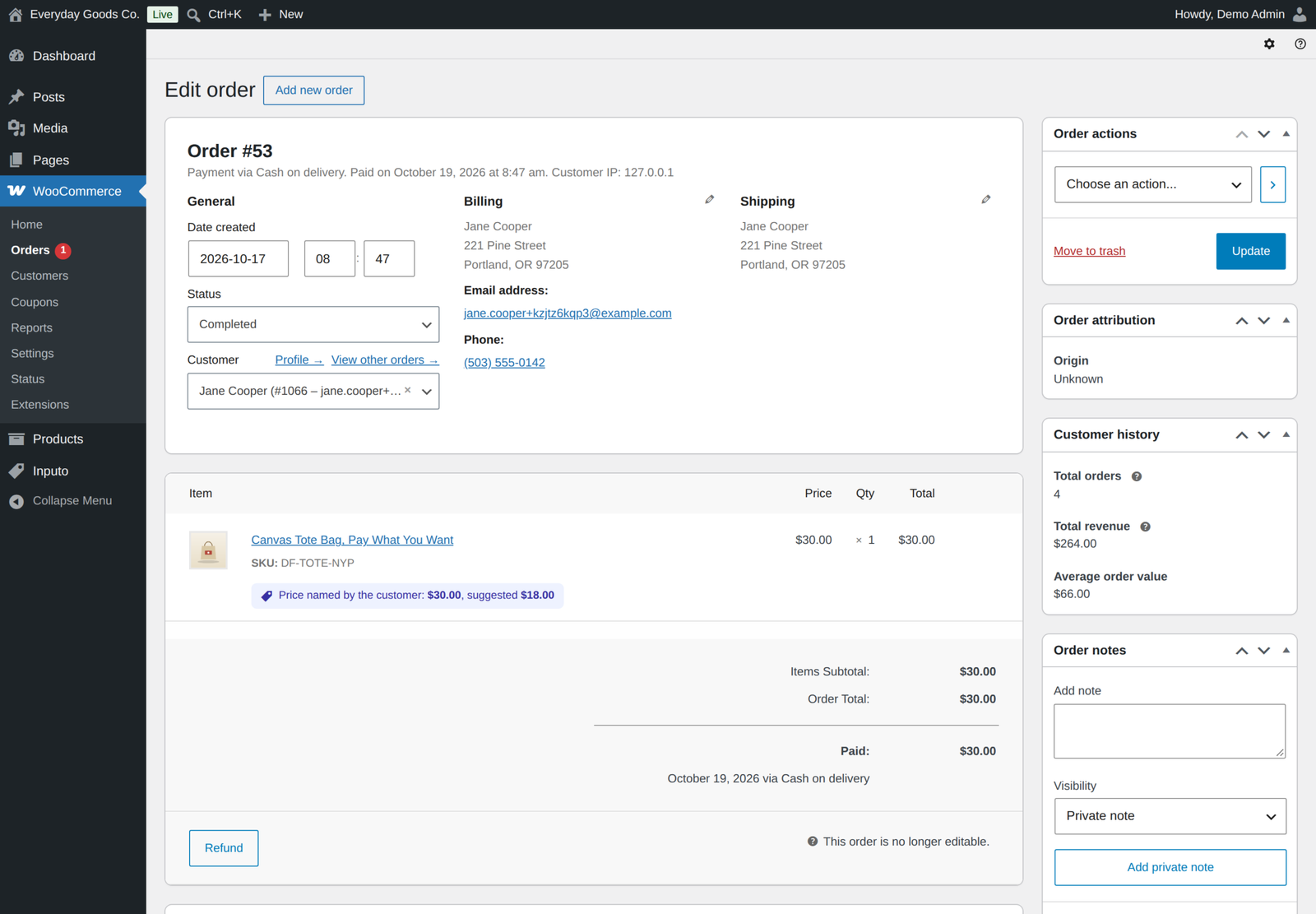
- Named and suggested price recorded on every order line and shown on the order screen
- Order again brings back the same amount
- Filter the admin product list to named price or fixed price products, including products switched on by a rule, plus the Named price column
- Documentation for every option, with examples, built into the plugin under Inputo, Documentation
Works with what you already run
- Simple and variable products, with a named price on some variations and fixed prices on others
- Grouped products, with a price box for each named price item
- WooCommerce Subscriptions. Let customers name the price of a simple or variable subscription, charged at sign-up and at every renewal. The billing period, length, trial and sign-up fee stay as set on the subscription.
- Currency switchers. With WPML WooCommerce Multilingual, Aelia, CURCY or WOOCS, amounts show in the shopper's currency and the typed amount is charged once, in that currency.
- Block themes, including variable products in the Add to Cart with Options block
- Cart and Checkout Blocks and the classic cart and checkout
- High Performance Order Storage
- Store API, with a clear error when an amount is missing or out of range
- Accessible, with a labelled field, screen reader announcements and reduced motion support
- Translation ready
For developers
The price box template can be copied from templates/price-input.php to yourtheme/inputo/price-input.php, and its look can be changed with CSS custom properties on .inputo-nyp. Filters and actions such as inputo_nyp_is_enabled, inputo_nyp_thresholds and inputo_nyp_validate_price let you change which products take a named price, their amounts and how a price is validated. Any other currency switcher can be added with the inputo_nyp_currency_rate filter, and the built in documentation lists every hook and browser event.
Privacy
Inputo Pro loads nothing from third party servers and its features never contact an external service. The report data is stored in a table in your own database and holds order and product numbers and amounts, never names or addresses. The only outside contact is the licence and update check, which runs only after you enter a licence key.
Moving from the free edition
Install and activate Pro. Every product amount and setting carries on exactly as it was. If the free edition is still active it stays idle while Pro runs, and you can deactivate it whenever you like. Then open Inputo, Tools and press Rebuild now once, so orders placed before Pro was installed appear in the reports.
Licence
Inputo Pro is a one-time payment with lifetime updates. Enter your licence key under License in the Inputo menu to get automatic updates on the Plugins screen. The licence only controls updates: every Pro feature works the same with or without it.
Requirements
- WordPress 6.4 or newer, tested up to 7.1
- WooCommerce 8.0 or newer, tested up to 11.2.1
- PHP 7.4 or newer
FAQ
Do I keep my settings when I move from the free edition?
Yes. Pro reads the same settings and product amounts, and everything carries on as it was. While Pro is active the free edition stays idle, and you can deactivate it.
Can I go back to the free edition?
Yes. Deactivate Pro and activate the free edition. Your products and shared settings stay. Pro only features, such as rules and reports, stop working until Pro is active again.
Does a rule override a product's own amounts?
No. A rule switches named price on and sets the percentages used for empty amounts. Any amount typed on a product still wins.
Where does the average paid line get its figure?
From paid orders recorded in the report data, per item and in the shopper's currency. It only appears once a product has at least the number of separate buyers you choose, never fewer than three. A customer account counts once however often it buys, and each guest order counts once.
Can customers pay nothing?
Only if you allow it on purpose, by setting a minimum of exactly 0 on the product, or a minimum percentage of 0 on the General screen or in the rule that switches the product on.
Does it work with WooCommerce Subscriptions?
Yes. Simple subscriptions and variations of variable subscriptions can take a named price. The chosen amount is charged at sign-up and at every renewal. The billing period, length, trial and sign-up fee stay as set on the subscription.
Does it work with currency switchers?
Yes, with WPML WooCommerce Multilingual, Aelia Currency Switcher, CURCY and WOOCS. Developers can add any other switcher with the inputo_nyp_currency_rate filter.
Can I put the price box on a donation page?
Yes. Use the shortcode [[inputo_price_box id="123"]] or the Name your price box block with the id of a named price product or variation.
Do I need to do anything after updating to 1.4.0?
Press Rebuild now once on the Inputo Tools screen. Reports then count orders recorded before the update with their refunds, per item. The Reports and Tools screens remind you until it is done.
Changelog
Every release, newest first, with the date it came out.
Version 1.4.0 (October 17, 2026)
- Fix: variable products in the Add to Cart with Options block, the default on block themes. The price box now follows the chosen variation there, so named price variations can be bought.
- Fix: the price slider sits on the meter without being hidden from screen readers.
- Fix: a product's own suggested price line and field label now also change the price line under the title and in product lists.
- Fix: Switch off name your price from Bulk actions now also keeps a product out of rules when a rule would switch it straight back on, and the notice says so. The notice no longer comes back on reload.
- Fix: the number of products a rule reaches now matches what the rule does. Rules include child categories, and products kept out of rules and product types a named price does not apply to are not counted.
- Fix: the category and tag pickers on the Rules screen search as you type on shops with more than 500 terms, and saving never drops a term a rule already uses.
- Fix: settings files name rule categories and tags by slug, and import finds the matching terms on the other shop. Terms it cannot find are listed.
- Fix: a rule with no category and no tag is reported when you save, instead of disappearing without a word.
- Fix: reports record orders created straight in a paid status, for example through the REST API, and orders edited after payment.
- Fix: reports take partial refunds off the takings, and the average named price and the share at or above the suggestion count items rather than order lines.
- Fix: the average paid line counts separate buyers, so one customer buying several times cannot reveal what they paid.
- Fix: the product list filter counts products switched on by a rule as named price products.
- Fix: adding a named price product to an order by hand, or quick editing it, judges the product as set up, not by the access rule for your own account.
- Fix: the access message follows the Add to Cart with Options block on block themes.
- Fix: a rule with a minimum of 0 percent allows free order lines, and a rule with a higher minimum no longer allows them because of the General screen.
- Fix: with prices entered including tax and shown excluding tax, the typed amount gets the shop's base tax back, as WooCommerce does.
- Fix: the CSV download is offered whenever the period has lines in any currency.
- New: WooCommerce Subscriptions support for simple and variable subscriptions. The chosen amount is charged at sign-up and at every renewal.
- New: currency switcher support for WPML WooCommerce Multilingual, Aelia Currency Switcher, CURCY and WOOCS, and a filter for any other.
- New: reports show one currency at a time, with a choice of currency when orders came in more than one.
- New: a shortcode, [[inputo_price_box]], and a Name your price box block that place a complete name your price form on any page.
- New: a price box for each named price item in grouped products.
- New: start and end dates for rules, and named price dates for single products.
- New: a Slider step setting on the Price input screen.
- New: Keep out of name your price rules and Follow name your price rules bulk actions.
- Improved: the documentation covers every new feature, lists every hook and browser event, and names the right Store API error code for each case.
- Improved: uninstall removes product data through the plugins' own list of meta keys.
- Improved: after updating, the Reports and Tools screens ask you to press Rebuild now once, so orders recorded before 1.4.0 are counted with their refunds.
Version 1.3.0 (October 15, 2026)
- New: a Named price column in the admin product list shows each named price product's minimum, suggested and maximum amounts, and for variable products how many variations take a named price. Hide it under Screen Options if you do not need it.
- Changed: Pro no longer switches the free edition off. The free edition stays idle while Pro runs, and a note on the Plugins screen says it can be deactivated.
- Improved: a cart line keeps its named amount only while the product still takes a named price for that customer, so a change to rules or access applies to carts that already hold the product.
- Improved: amounts too large to be a real number are refused on the server.
- Improved: the Store API accepts a named amount when the request names a variable product and its attributes instead of the variation id.
- Improved: a Store API add to cart with a missing or out of range amount is answered with a clear 400 error and the message, instead of a server error.
- Readme: External services section for the licence and update check, and links to the live demo, documentation and support.
- Tested with WordPress 7.1.3 and WooCommerce 11.2.1.
Version 1.2.1 (September 2026)
- Fix: the changelog now says where to enter the license key: License in this plugin's menu.
- Tested with WordPress 7.1.1 and WooCommerce 11.1.1.
Show earlier versions (1.0.0 to 1.2.0)
Version 1.2.0 (September 2026)
- New: automatic updates. Enter your license key under License in this plugin's menu, and new versions appear on the Plugins screen like any other update.
- New: with more than one ProPluginsLab plugin installed, WooCommerce, Licenses also lists them all in one place. The Plugins screen shows a reminder until a key is activated.
- New:
wp ppl-licensecommands (list, activate, deactivate, check) for managing keys from WP-CLI. - Pro features keep working with or without an active license; the license only controls automatic updates.
Version 1.1.0 (September 2026)
- New: set your own Add to cart button text for named price product pages, on the Display screen. Empty keeps your theme's wording.
- New: filter the admin product list to named price or fixed price products.
- Links moved to propluginslab.io.
- Tested with WordPress 7.1.1 and WooCommerce 11.1.1.
Version 1.0.0 (September 2026)
- First release.
Details
At a glance
- Latest version
- 1.4.0
- Last updated
- October 19, 2026
- Type
- Pro plugin
Requirements
- PHP version
- 7.4
- WordPress (min)
- 6.4
- WordPress (tested)
- 7.1
- WooCommerce (min)
- 8.0
- WooCommerce (tested)
- 11.2.1
Share
You might also like
 CodeCanyon
 Free
Storefold Multivendor Marketplace for WooCommerce Free
Turn WooCommerce into a multivendor marketplace with vendor stores, split orders, commissions and payouts. Sellers apply, you approve them, and customers pay once.
Free
Live demo-
Pro
Dispatchio Advanced Shipment Tracking for WooCommerce
Shipment tracking for WooCommerce with 285 carriers, Shipped and Delivered statuses, tracking emails and live carrier updates. Works with your existing tracking data.
From $49.00 One-time
Live demo