Your cart is empty.
Browse plugins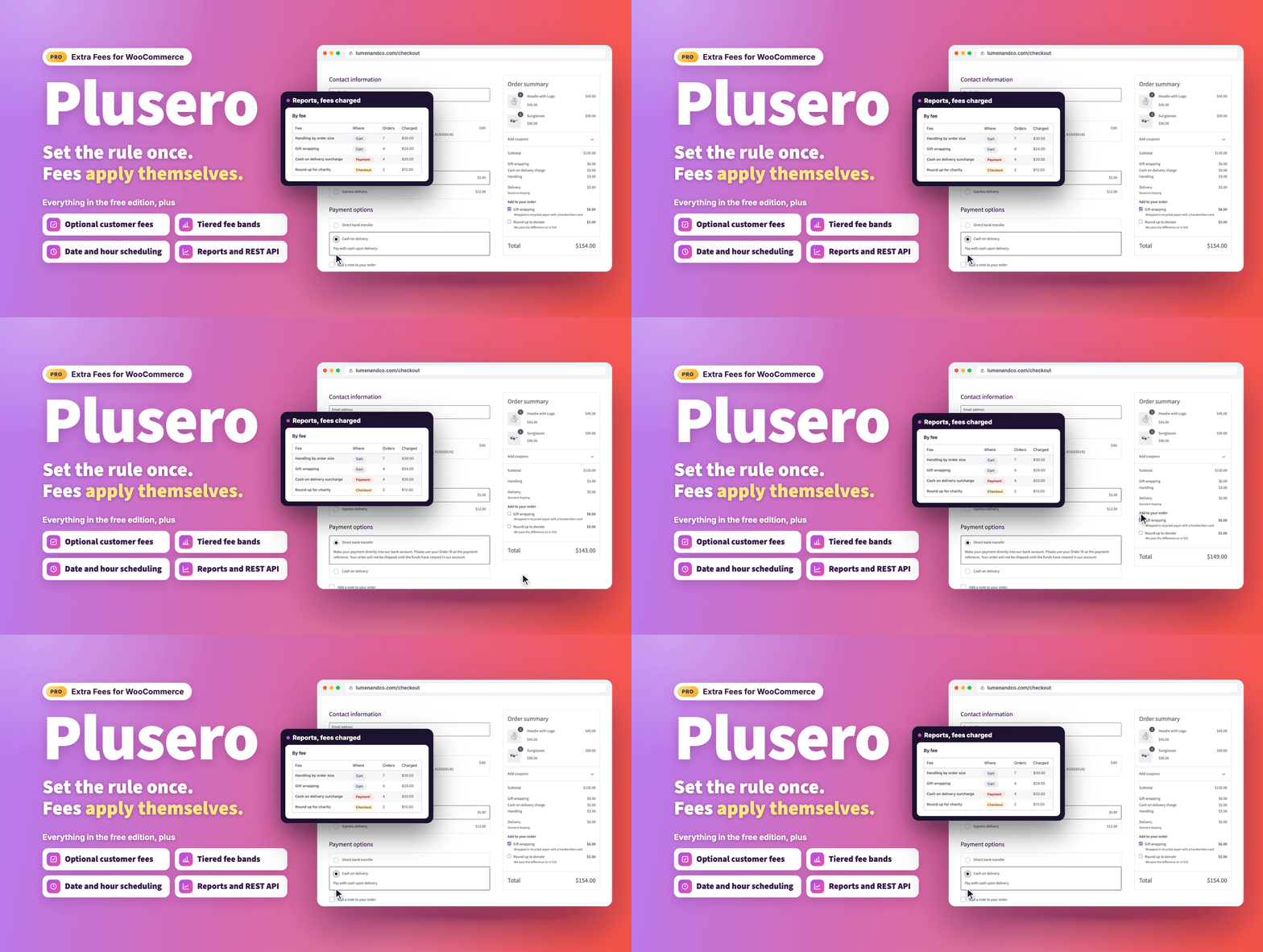
Overview
Charge what an order actually costs you.
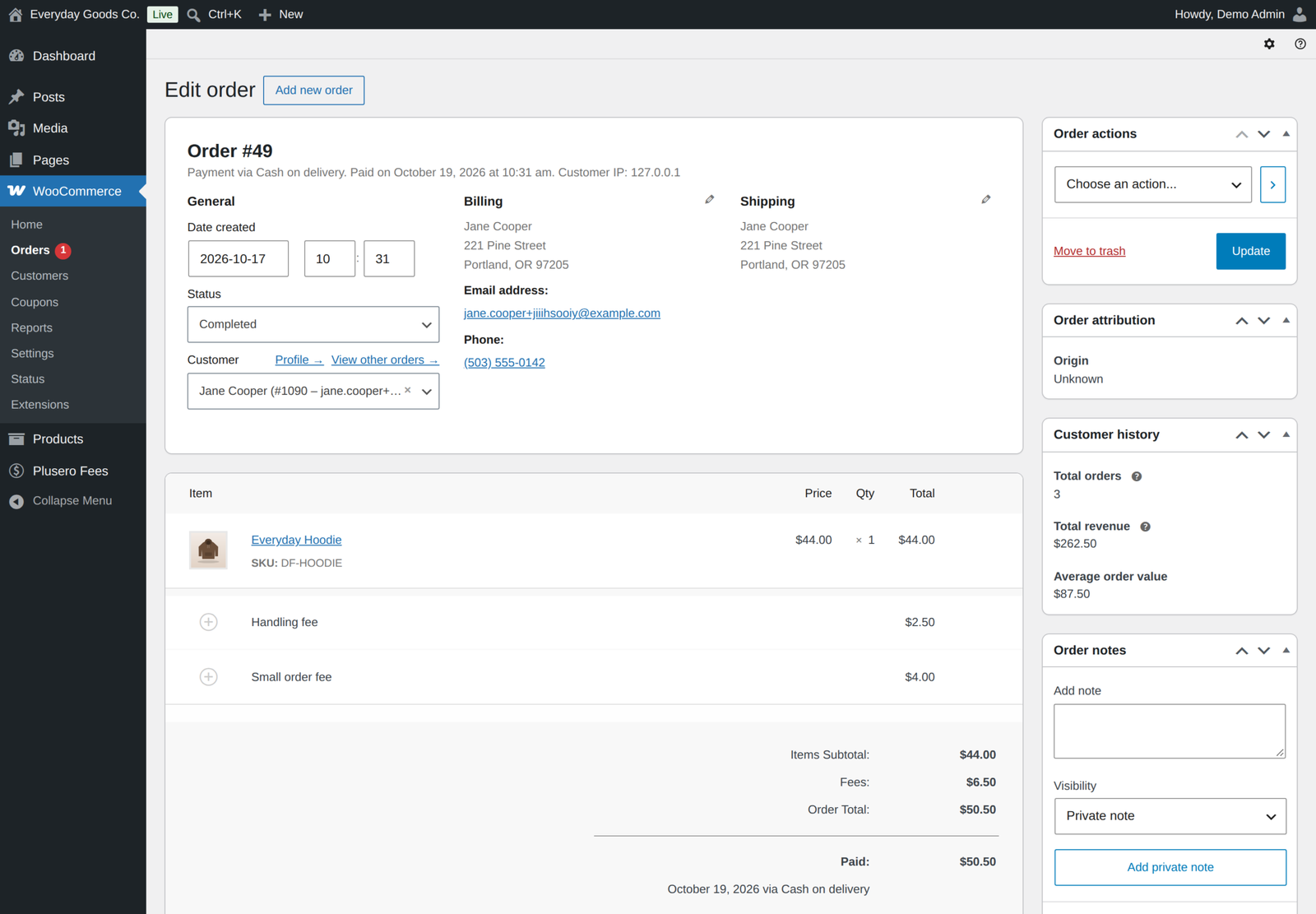
Some orders cost more to fulfil than others. Cash on delivery ties up a courier and comes back more often. A small basket costs the same to pick and pack as a large one, fragile stock needs real packaging, and card processing takes its cut whatever you charge.
Plusero - Extra Fees for WooCommerce Pro turns each of those into a rule you write once: where the fee applies, when it applies, how much it comes to and what the customer sees. It replaces the pile of snippets and single purpose fee plugins most shops end up with, without touching your product prices. Fees appear as their own line in the totals, so a customer can always see what they are paying for and why.
What's new in 1.4.0 (October 17, 2026)
- Target fees much more precisely. New shipping zone, shipping class, shipping state, city and postcode, and billing city conditions, with postcode ranges and wildcards, several values in one rule, and shipping method rules that can name one method in one zone, such as your Express flat rate.
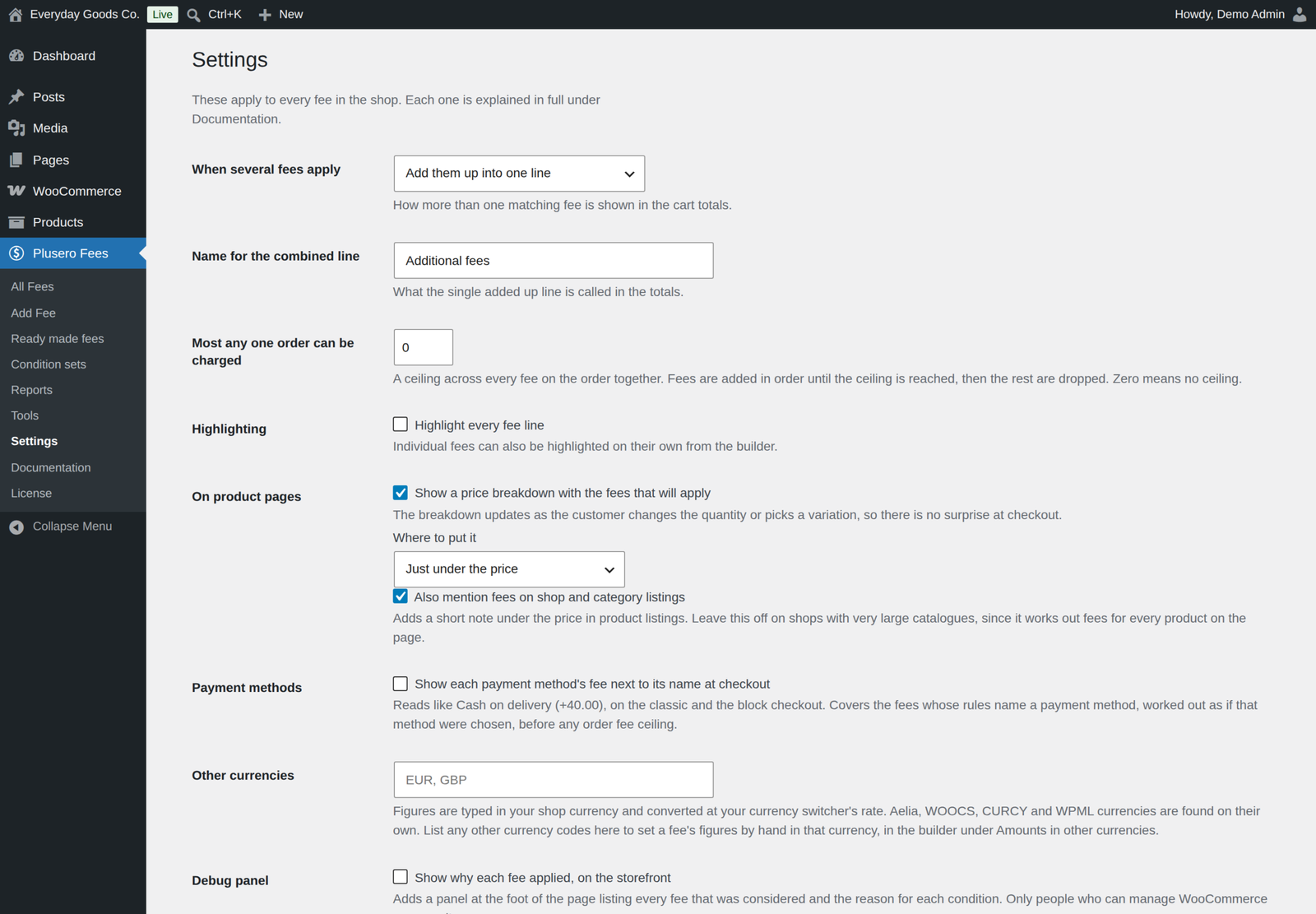
- Show the payment fee before it is chosen. Each payment method can show its fee next to its name, such as Cash on delivery (+40.00), on the classic and the block checkout.
- More ways to offer optional fees. Customers can now pick one fee from a choice group, choose how many with a quantity box, or tick a fee per item on the product page.
- Figures for each currency. Type your own amounts for each currency, or let every figure be converted once at the switcher rate, now including WPML WooCommerce Multilingual.
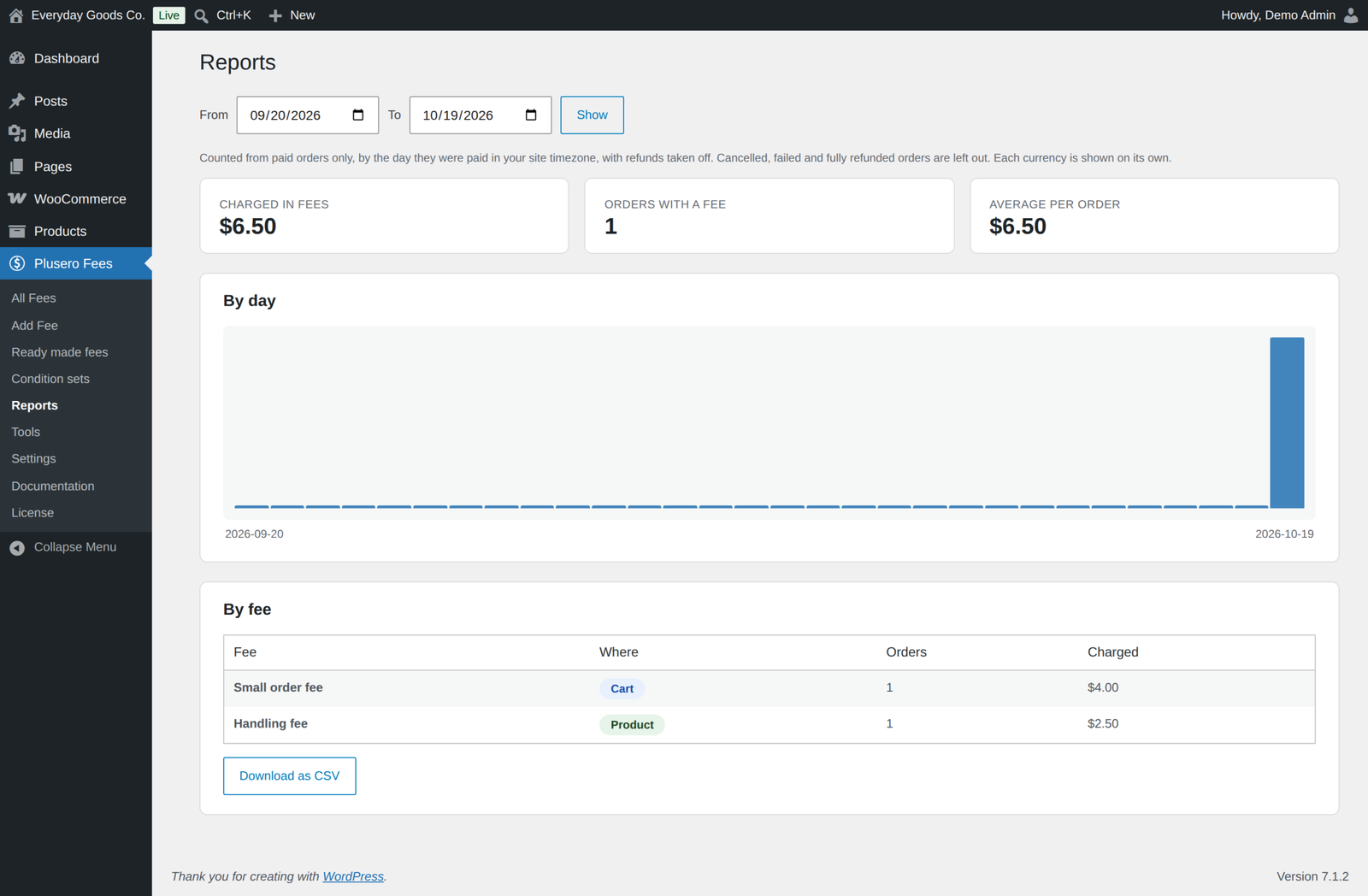
- Reports that match the money. Only paid orders count, refunds are taken off, a retried payment is never counted twice, and each currency is reported on its own.
- Condition sets that work in full. Sets can be given conditions, edited and given several groups, and imported fees stay attached to them.
- A clearer change history. It records what changed from what, including condition sets, settings and imports.
- Subscriptions support. Each fee can be charged on the sign up order only, or on every renewal too.
- Descriptions in the block checkout. Fee descriptions, tooltips and highlighting now show on the block cart and checkout as well as the classic ones.
- Safer saving and charging. Saving a fee no longer switches it on, a product fee never falls back to charging the whole cart, and two fees with the same label are both charged.
Five places a fee can apply
- Product fees. Charged on the products they match: packaging on fragile stock, gift wrapping, insurance on high value items, a handling charge on one category. A percentage product fee is worked out from the matching products, not from the whole basket.
- Cart fees. Charged on the basket as a whole: small order fees, bulk handling, weight based charges.
- Checkout fees. Charged on who the customer is and where they are: regional service charges, fees by customer role, fees for first time buyers.
- Shipping fees. Charged on the shipping method the customer picked, a whole method type or one method in one shipping zone, such as your Express flat rate: express handling, cold chain, oversized carriage.
- Payment fees. Charged on the gateway the customer picked: cash on delivery surcharges, card processing costs. Each payment method can show its fee next to its name, such as Cash on delivery (+40.00), on the classic and the block checkout. The total updates the moment they switch payment method, so nothing appears as a surprise on the final screen.
Twenty four ways to decide when a fee applies
- The basket. Cart subtotal, total quantity, cart weight, number of different items, coupon used.
- The products. A specific product or variation, a product category, a product tag, a shipping class.
- The customer. Customer role, logged in or shopping as a guest, how many paid orders they have placed before, with returning guests recognised by email.
- Where it is going. Billing country, state, city and postcode. Shipping country, state, city and postcode. Shipping zone. Pick several countries or states in one rule, and match postcodes with ranges and wildcards, such as 1000...1999 or SW1*.
- What they chose at checkout. Shipping method, payment method. One rule can name several of each.
- When. Day of the week.
Conditions combine into groups. Inside a group you choose whether all of them have to match or any one will do. Between groups it is always all, so a rule can need one thing to be true and any of several others. For example: charge this only when the country is India, and the customer is either paying cash on delivery or spending under 500.
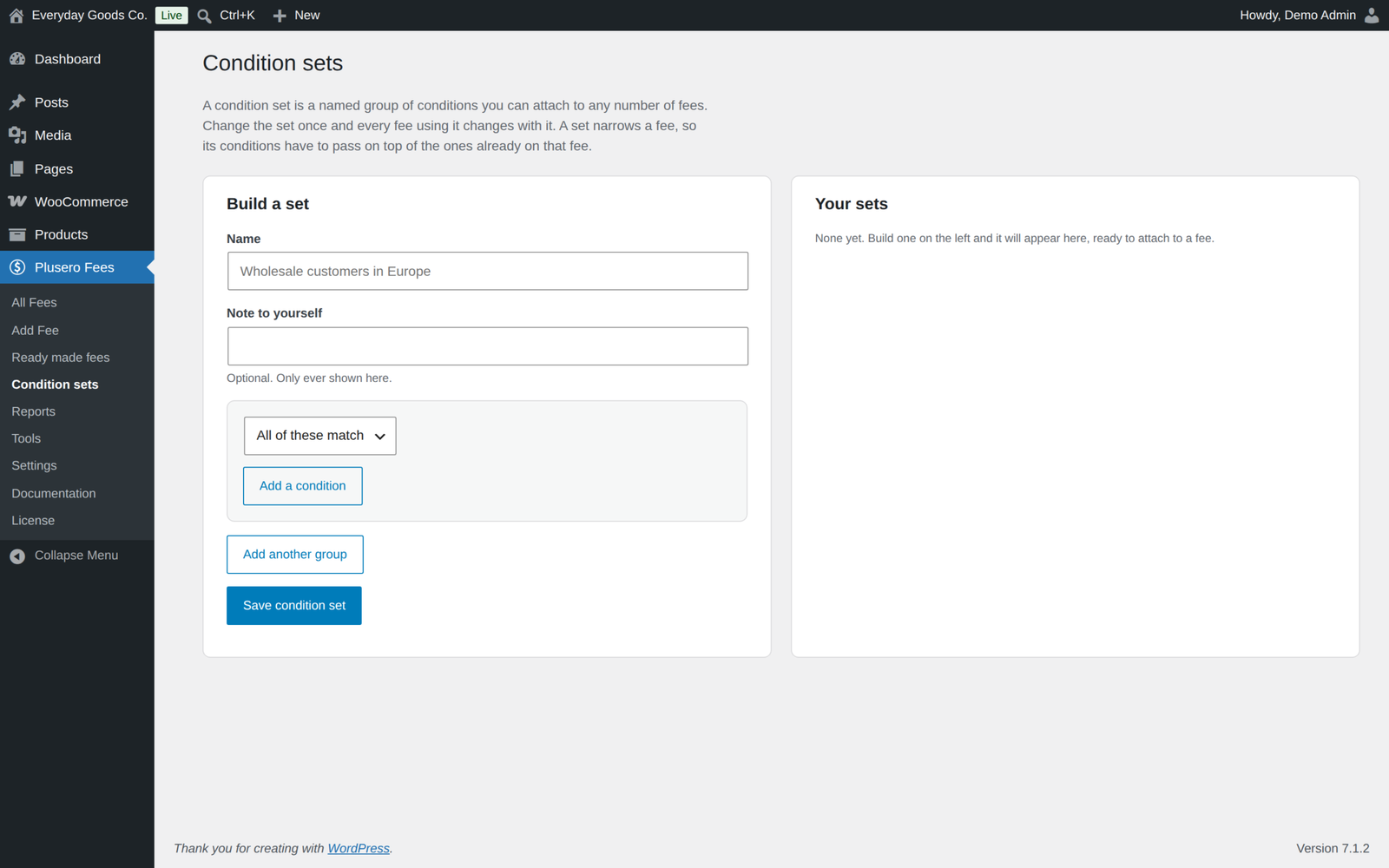
- Reusable condition sets. Name a group of conditions once, then attach it to as many fees as you like. Edit a set and every fee using it changes, so you never edit the same five rules across eight fees. A set can hold several groups, and a set in use is never deleted by accident: the fees using it are switched off rather than left to charge everyone.
- Scheduling. Run a fee between two dates, on set days of the week, and only inside a window of hours. A holiday surcharge that switches itself on and off, or a weekend delivery fee that only runs Friday to Sunday.
Seven ways to work out the amount
- Fixed amount. A flat charge, the same on every order.
- Percentage. A share of the cart, or of the matching products on a product fee.
- Percentage plus fixed. A percentage and a flat amount together, the way card processors price their own charges.
- Per item. The amount multiplied by how many items are in scope.
- Per unit of weight. The amount multiplied by the weight in scope.
- Tiered bands. A set of ranges, each with its own amount, measured against the cart subtotal, the total quantity or the total weight. For example, handling that costs 60 under 1000, 35 between 1000 and 5000, and nothing above that. A figure in a gap between two bands is charged at the band below it, and the builder warns about gaps and overlaps.
- Round the total up. Charges the difference to the next round number. Paired with an optional fee it becomes a round up for charity that customers opt into, and a basket already sitting on a round number is charged nothing.
A percentage can be taken from the cart subtotal, the subtotal including tax, the item total after discounts, the subtotal plus shipping, or the order total after discounts, with shipping and tax.
Charge or reduce. Any fee can apply as a reduction instead of a charge. The amount is worked out the same way and lands as a negative line, which is how you build a bulk order saving or a loyalty discount without touching coupons.
Every method also takes a smallest and largest amount, a rounding choice (two decimals, up to a whole number, the nearest 0.05, or no rounding) and a tax setting that follows your WooCommerce tax classes.
Fees the customer chooses
Mark a fee optional and it stops being a charge and becomes an offer. It appears in the cart and checkout totals, under "Add to your order", as a tick box, a quantity box, or one choice in a group such as Standard, Express or Same day handling. A product fee can instead be offered per item, as a tick box above the add to cart button. Good uses are gift wrapping, express handling, insurance, a carbon offset or a donation.
The offer only appears when the rest of the fee conditions already match, so a gift wrapping option limited to one category stays out of the way everywhere else. It is offered at the price it will be charged, and choosing it updates the totals immediately. This works on the classic cart and checkout and on the block cart and checkout, where the offers travel as Store API cart data, so no template is replaced.
Control across the whole order
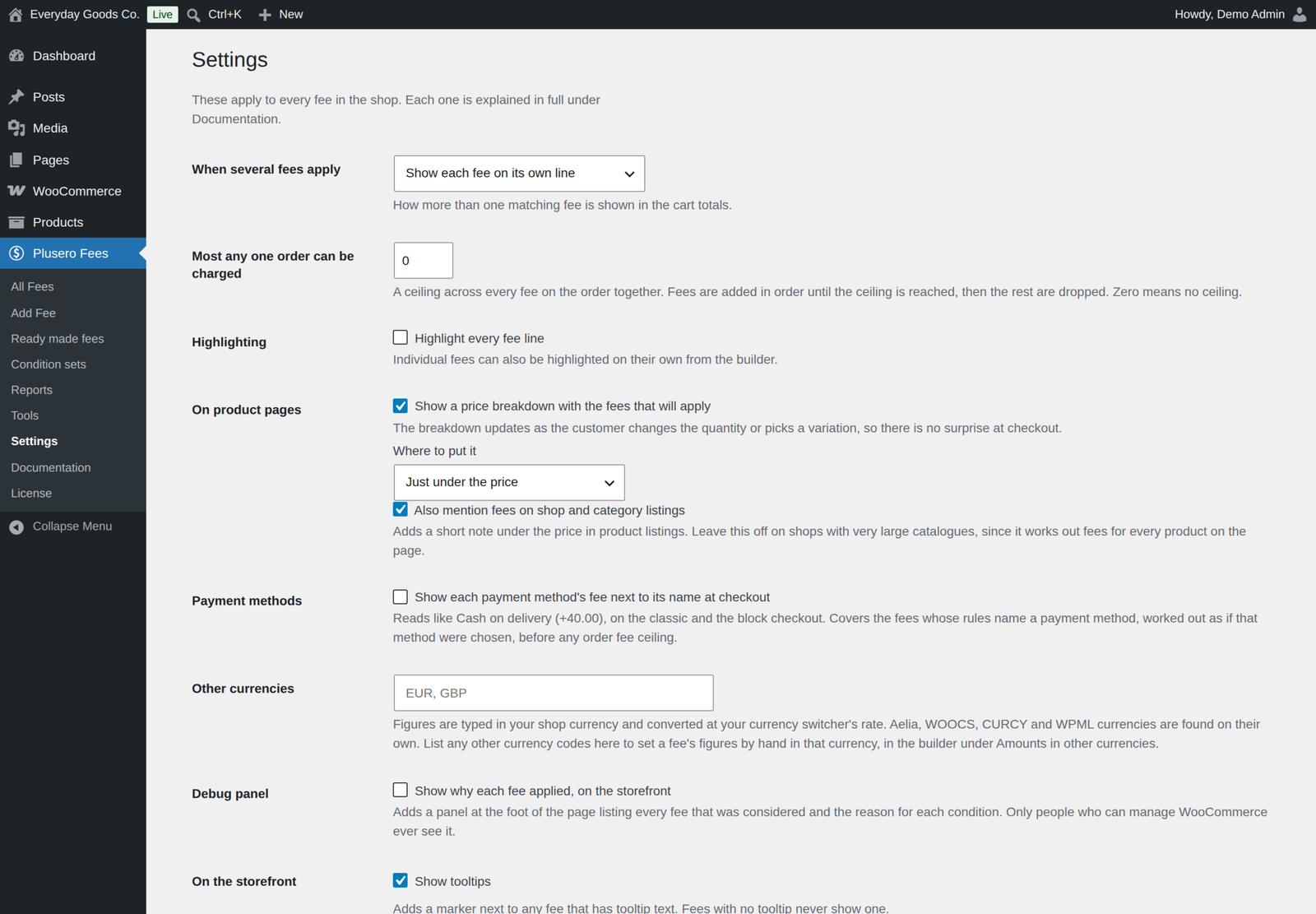
- Show them your way. One line per fee, every fee added into a single line with a name you choose, or fees grouped by where they came from. Group names are yours to set and they translate. Fees taxed differently are never forced onto one taxed line: they get one line each, under the same name.
- Charge only the first match. When you have several versions of one idea, only the first one that matches lands.
- Cap the total. Set a ceiling on the fees any one order can carry. Fees are added in order until the ceiling is reached, and the fee that crosses it is trimmed to fit exactly rather than dropped. Reductions always go through.
- Highlight. Draw attention to one fee, or to all of them, on the classic and the block totals, so nothing is missed.
- Hide what comes to nothing. A fee that works out to zero is left off the totals rather than shown as a blank line.
On the product page
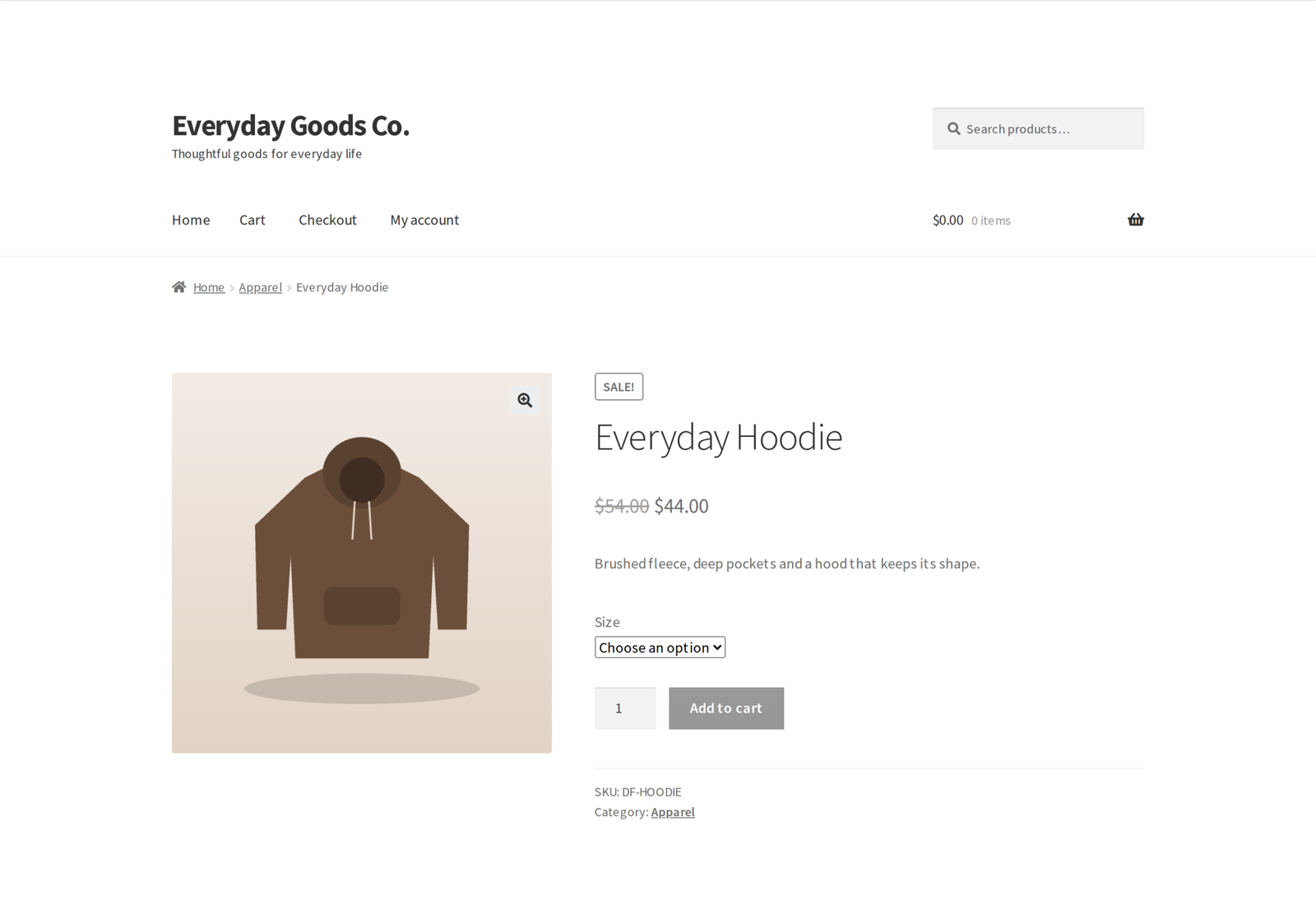
A live price breakdown updates as the shopper changes the quantity or picks a variation, so the fee is never a surprise at checkout. Place it just under the price, above or below the add to cart button, or at the end of the product summary. The breakdown is worked out for that product on its own, so a rule about the whole cart is checked against that product only.
You can also mention fees in shop and category listings. The product edit screen gains a box showing which fees currently apply to that product.
Knowing what is happening
- Reports. What each fee earned over any date range, with a chart by day, a table by fee and a CSV download for your accountant. Only paid orders count, refunds are taken off, cancelled and failed orders drop out, a retried payment is never counted twice, and each currency is reported on its own.
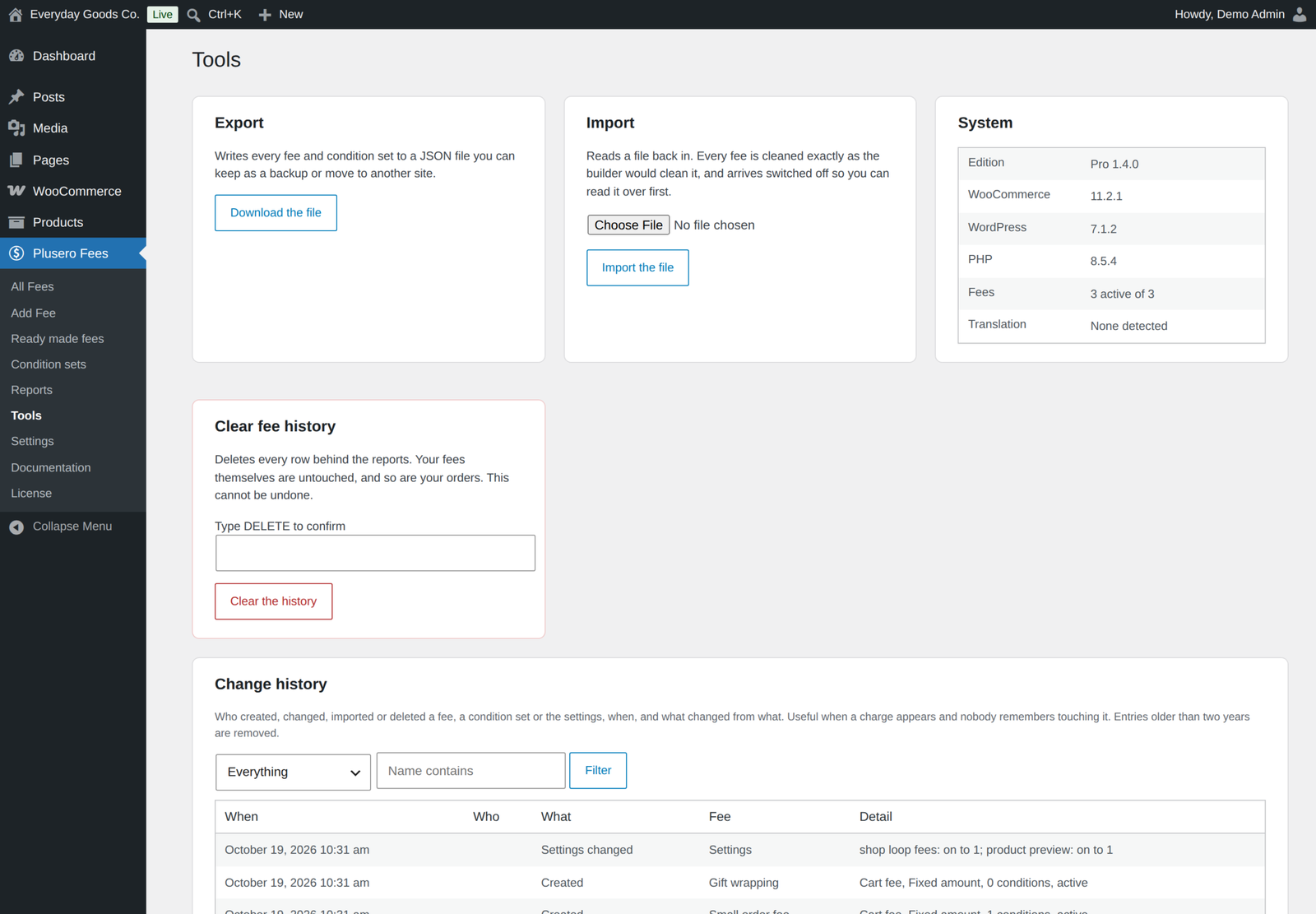
- Change history. Who created, changed, imported or deleted a fee, a condition set or the settings, when, and what changed from what. On a shop where more than one person edits fees, this is the fastest way to answer why a charge appeared.
- Debug panel. Switch it on and see, on your own storefront, every fee that was considered, whether it was charged, and the reason for each condition, including fees left off by first match only or trimmed by the order ceiling. Only people who can manage WooCommerce ever see it.
Set up in minutes, not evenings
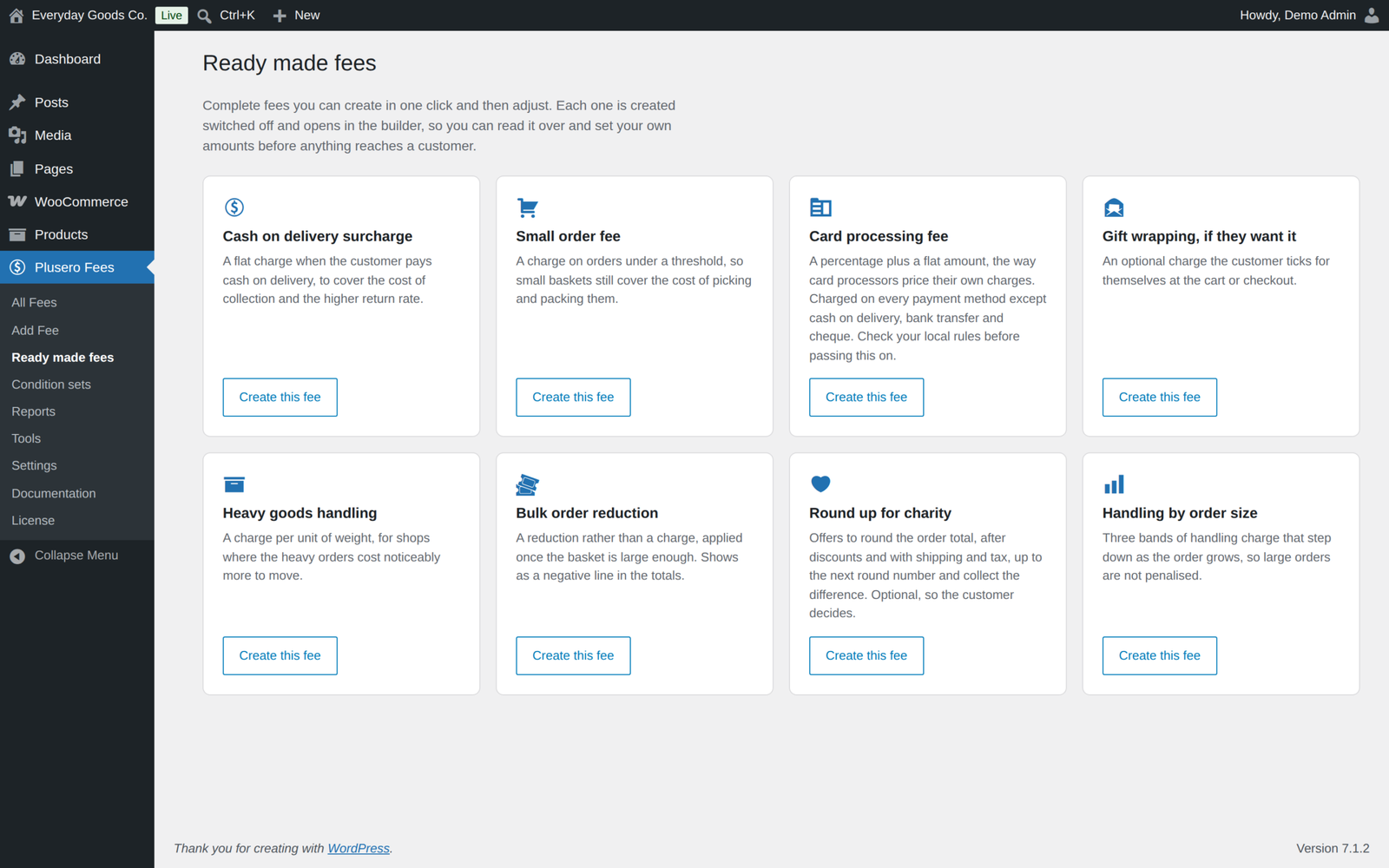
- Eight ready made fees. Cash on delivery surcharge, small order fee, card processing, gift wrapping, heavy goods handling, bulk order reduction, round up for charity and handling by order size. Each is one click away and is created switched off so you can read it over first.
- Import and export. Move every fee and condition set between sites as a JSON file. Build on staging, ship to live. Imported fees arrive switched off and stay attached to their condition sets, matched by name.
- Built in documentation. Every option is explained inside your dashboard, under Plusero Fees, Documentation, so you never have to leave your site to find out what a setting does.
Building a fee
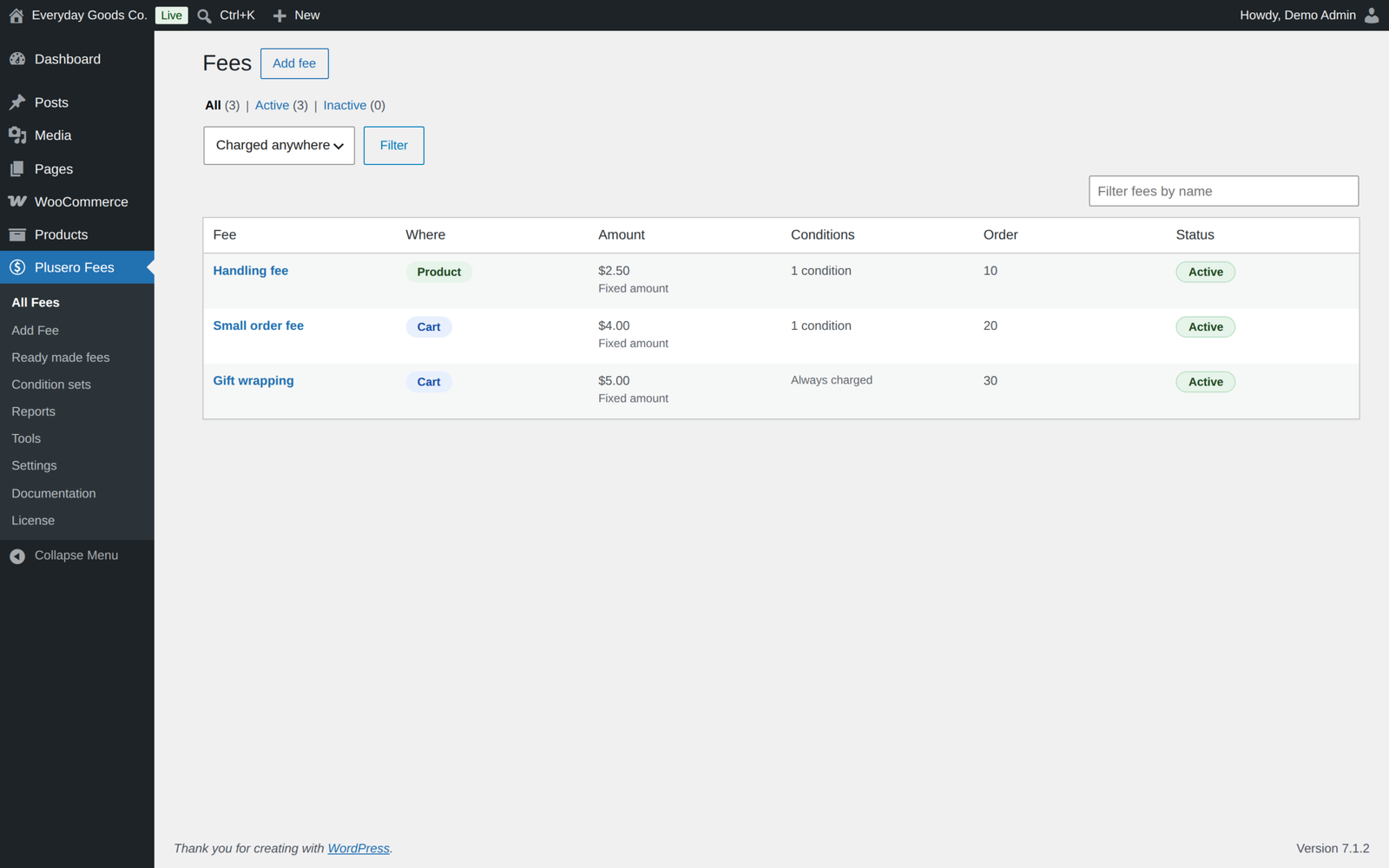
Go to Plusero Fees, Add Fee. The builder asks five questions and reads your answers back as a sentence before you save.
- Where should it be charged? Product, cart, checkout, shipping or payment. This decides which conditions you can use.
- When should it be charged? Add conditions, or leave it empty to charge on every order.
- How much should it be? Pick a method, fill in the figures, and set limits, rounding and tax.
- What should customers see? The label on the fee line, an optional description shown under the fee in the cart and checkout totals, and a tooltip for the detail that would clutter the label.
- Does this look right? The whole rule in plain words. Save it switched on, or as a draft that charges nothing until you switch it on.
Worked examples
- Cash on delivery surcharge. Payment fee. Payment method is Cash on delivery. Fixed 40.
- Small order fee. Cart fee. Cart subtotal is less than 500. Fixed 50.
- Card processing. Payment fee. Payment method is none of cash on delivery, bank transfer or cheque. 2.9 percent plus 0.30, taken from the order total after discounts.
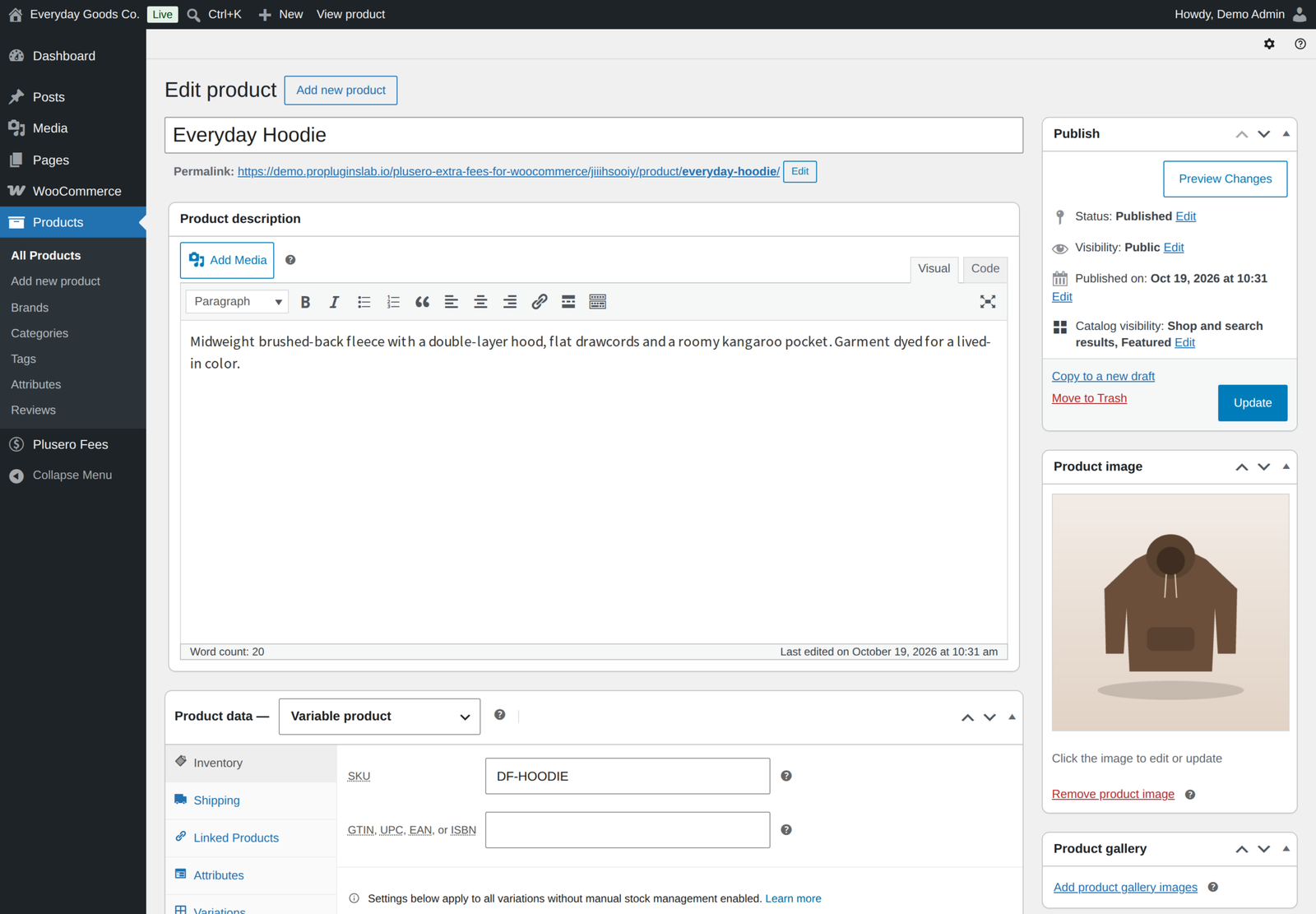
- Fragile packaging. Product fee. Category is Glassware. 20 per item, counting only the glassware in the basket.
- Express handling. Shipping fee. Shipping method is your Express flat rate in one shipping zone. Fixed 30.
- Gift wrapping the customer chooses. Cart fee. Fixed 75, marked optional, with a description explaining what they get.
- Handling that scales down. Cart fee. Tiered on subtotal: 60 up to 999, 35 from 1000 to 4999, nothing from 5000.
- Weekend delivery surcharge. Shipping fee. Scheduled Friday to Sunday. Fixed 25.
Amounts are in your shop's own currency.
Works where WooCommerce works
- Every checkout. The classic cart and checkout, the block cart and checkout wherever they are placed, and the Store API all show the same totals. Fees flow through to the order, the confirmation email and PDF invoices with no extra setup.
- High Performance Order Storage is supported.
- WooCommerce Subscriptions. Each fee is charged on the sign up order only, or on every renewal too, as you choose.
- Currency switchers. Aelia, WOOCS, CURCY and WPML WooCommerce Multilingual. Every figure you typed is converted once, before the fee is worked out, percentages are never converted, and a fee can carry its own figures for each currency.
- Page caches. WP Rocket, W3 Total Cache, WP Super Cache, LiteSpeed Cache and Autoptimize are cleared when your fees change, so no cached page shows an old fee.
- WPML and Polylang. Fee labels, descriptions, tooltips and group names register automatically when you save, so they translate alongside the rest of your shop. Translations made in the free edition keep working in Pro.
For developers
The whole plugin is built on filters, the same ones Pro itself uses. Register your own condition with plusero_ef_conditions and answer it with plusero_ef_evaluate_condition, add a calculation with plusero_ef_methods and plusero_ef_calculate_custom, or change a finished amount, from a theme or a small plugin of your own. Around ninety actions and filters run through the code, and the main extension points are documented under Plusero Fees, Documentation, For developers.
The REST API under plusero-ef/v1 answers what a product costs once its fees are added, which suits a headless storefront or an app. A second, authenticated route returns your fee configuration to WooCommerce managers.
Privacy
The fee engine, the product page breakdown, the reports and the REST API make no remote requests. The only outgoing request is the licence and update check, and it only runs after you enter a licence key.
Free and Pro
A free edition is available on WordPress.org. It is complete on its own.
In both editions
- All five fee locations: product, cart, checkout, shipping and payment
- Eight conditions: cart subtotal, total quantity, product, product category, customer role, billing country, payment method and shipping method
- Shipping method rules that name one method in one zone
- All or any matching inside a condition group
- Fixed and percentage amounts, with limits, rounding and tax classes
- Labels, descriptions and tooltips, on the classic and the block cart and checkout
- The guided five step builder and built in documentation
- Live recalculation when the shopper changes gateway or shipping method
- Classic and block checkout, HPOS, WPML and Polylang
Only in Pro
- Sixteen more conditions, including shipping zone, shipping class, postcode, weight, tag, day of the week and coupon used
- Per item, per weight, percentage plus fixed, tiered bands, round up and reductions
- More percentage bases
- Optional fees as tick boxes, quantity boxes, choice groups and per item choices
- More than one condition group, reusable condition sets and scheduling
- Combined or grouped fee lines, first match only, an order fee ceiling and highlighting
- Payment method fees shown next to their names
- The product page breakdown and listing notes
- Reports, change history and the debug panel
- Ready made fees, import and export, and the REST API
- Currency switcher, per currency amounts, subscription and page cache compatibility
Moving from the free edition
Pro reads the same fees from the same table, so nothing needs to be rebuilt. While Pro is active the free edition stays idle and a note on the Plugins screen says you can deactivate it. Every fee and setting you already built is kept exactly as it was.
You can also go back: deactivate Pro and activate the free plugin. Fees using Pro only features stop applying those parts, but nothing is deleted, so reactivating Pro brings them back.
Licence
A one-time payment with lifetime updates. Enter your licence key under License in the Plusero Fees menu and new versions appear on the Plugins screen like any other update. The licence controls updates, not features: every Pro feature works with or without an active licence.
FAQ
Will deleting the plugin remove my fees?
Only if you ask it to, under Settings, Uninstalling. It is off by default, so your fees survive a deactivate, a reactivate and an update.
Does the fee include tax?
Only if you tick Charge tax on this fee. You can then choose which tax class it uses, and WooCommerce treats the fee like any other taxable line in your tax reports.
Where can I try it?
See the live demo, read the documentation, or ask a question at propluginslab.io/support.
Requirements
- WordPress 6.4 or newer, tested up to 7.1
- WooCommerce 8.0 or newer, tested up to 11.2.1
- PHP 7.4 or newer
Changelog
Every release, newest first, with the date it came out.
Version 1.4.0 (October 17, 2026)
- Fix: saving a fee in the builder no longer switches it on. A ready made, imported, copied or paused fee keeps its status, and the last step has a Switch this fee on when I save it box.
- Fix: a product fee never falls back to charging on the whole cart. When no line matches its product rules it charges nothing, each condition group is read with its own logic, and product rules inside condition sets narrow the lines too.
- Fix: two fees with the same label are both charged, and the debug panel and reports record only what was really charged, including fees left off by first match only, trimmed by the order ceiling or refused by WooCommerce.
- Fix: reports count paid orders only, from the day they were paid in the site timezone, take refunds off, drop cancelled, failed and deleted orders, never count a payment retry twice, and keep each currency apart, in the table, the chart and the CSV. Existing history is rechecked in the background after updating.
- Fix: with a currency switcher every figure is converted exactly once, before the fee is worked out: fixed amounts, the fixed part of percent plus fixed, smallest and largest fee, band amounts and edges, the round up step, the order ceiling and subtotal thresholds in rules. Percentages are never converted.
- Fix: the condition set screen can add conditions, sets can be edited and can hold several groups, and deleting a set in use first shows which fees use it and switches them off. A fee whose set no longer exists is never charged.
- Fix: import attaches each fee to its condition sets again, matched by name.
- Fix: an optional product fee is offered at the price it will be charged, and only fees genuinely on offer can be chosen.
- Fix: combined and grouped lines no longer charge tax on fees that are not taxable. Fees taxed differently get one line each, and the settings screen says when that will happen.
- Fix: a figure in a gap between two bands is charged at the band below it, instead of nothing.
- Fix: Everything, including shipping and tax is now the order total after discounts, so a coupon lowers a card fee too.
- Fix: Orders placed before counts paid orders only and counts returning guests by email.
- Fix: optional fees on the block cart and checkout use the WooCommerce extension slot and the Store API, and the block scripts load wherever the Cart or Checkout block is placed.
- Fix: the product page breakdown works on cached pages, works with block themes, shows tooltips, agrees with the cart when prices include tax, and only accepts a variation of the product asked about. The same check applies to the REST preview.
- Fix: the debug panel follows the latest calculation, including checkout and block cart updates.
- Fix: WPML translations made in the free edition keep working in Pro, and fee labels stay in Polylang's Strings translations list.
- Fix: the card processing ready made fee is now a payment fee that skips cash on delivery, bank transfer and cheque, and round up for charity rounds the order total.
- Fix: deleting Pro with Remove all data ticked removes the Pro only tables even when the free edition is still installed.
- New: shipping zone, shipping class, shipping state, shipping city, shipping postcode and billing city conditions, and a shipping method rule can name one method in one zone, such as an Express flat rate.
- New: postcode lists with ranges and wildcards, and several countries, states, payment methods or shipping methods in one rule.
- New: show each payment method's fee next to its name at checkout, on the classic and the block checkout.
- New: amounts typed by hand per currency, alongside conversion at the switcher rate. WPML WooCommerce Multilingual is supported.
- New: optional fee choice groups shown as a list or a dropdown, a quantity box, and per item choices on the product page.
- New: each fee can be charged on WooCommerce Subscriptions renewals or on the sign up order only.
- Improved: fee descriptions, tooltips and highlighting show on the block cart and checkout.
- Improved: the change history records what changed from what, condition set and settings changes and imports, and can be filtered and paged. It is trimmed with the same retention as the reports.
- Improved: the documentation sends Pro customers to Pro support.
- Tested with WordPress 7.1.3 and WooCommerce 11.2.1.
Version 1.3.0 (October 15, 2026)
- New: the fee list can be narrowed to All, Active or Inactive fees, each with a count, and to fees charged in one place.
- Security hardening: posted settings, fee data, condition sets and optional fee choices are now cleaned as they are read, the REST fee list checks the WooCommerce manager capability through a named permission method, and the fee being edited reaches the builder through a properly enqueued script.
- Changed: Pro no longer switches the free edition off. While Pro is active the free edition stays idle and a note on the Plugins screen says it can be deactivated. Every fee and setting is kept.
- Deleting Pro keeps shared fees while the free edition is still installed.
- Tested with WordPress 7.1.3 and WooCommerce 11.2.1.
Version 1.2.1 (September 2026)
- Fix: the changelog now says where to enter the license key: License in this plugin's menu.
- Tested with WordPress 7.1.1 and WooCommerce 11.1.1.
Show earlier versions (1.0.0 to 1.2.0)
Version 1.2.0 (September 2026)
- New: automatic updates. Enter your license key under License in this plugin's menu, and new versions appear on the Plugins screen like any other update.
- New: with more than one ProPluginsLab plugin installed, WooCommerce, Licenses also lists them all in one place. The Plugins screen shows a reminder until a key is activated.
- New:
wp ppl-licensecommands (list, activate, deactivate, check) for managing keys from WP-CLI. - Pro features keep working with or without an active license; the license only controls automatic updates.
Version 1.1.0 (September 2026)
- New: fee descriptions are now shown under the fee amount in the classic cart and checkout totals. The Show descriptions setting, on by default, switches them off for the whole shop.
- Links moved to propluginslab.io.
- Tested with WordPress 7.1.1 and WooCommerce 11.1.1.
Version 1.0.0 (September 2026)
- First release.
Details
At a glance
- Latest version
- 1.4.0
- Last updated
- October 19, 2026
- Type
- Pro plugin
Requirements
- PHP version
- 7.4
- WordPress (min)
- 6.4
- WordPress (tested)
- 7.1
- WooCommerce (min)
- 8.0
- WooCommerce (tested)
- 11.2.1
Share
You might also like
 CodeCanyon
WooCommerce Hide Products
$15.00
 Free
Free
Inputo Name Your Price for WooCommerce Free
Free plugin that lets customers name their price on any WooCommerce product, block themes included. A minimum, suggestion and price meter guide them.
Free
Live demo-
Pro
Visuaro Product Designer for WooCommerce
Customers design products on your WooCommerce store and you get print ready files. Pro adds proof approval, team orders, gang sheets and vendor dispatch.
From $49.00 One-time
Live demo