Your cart is empty.
Browse plugins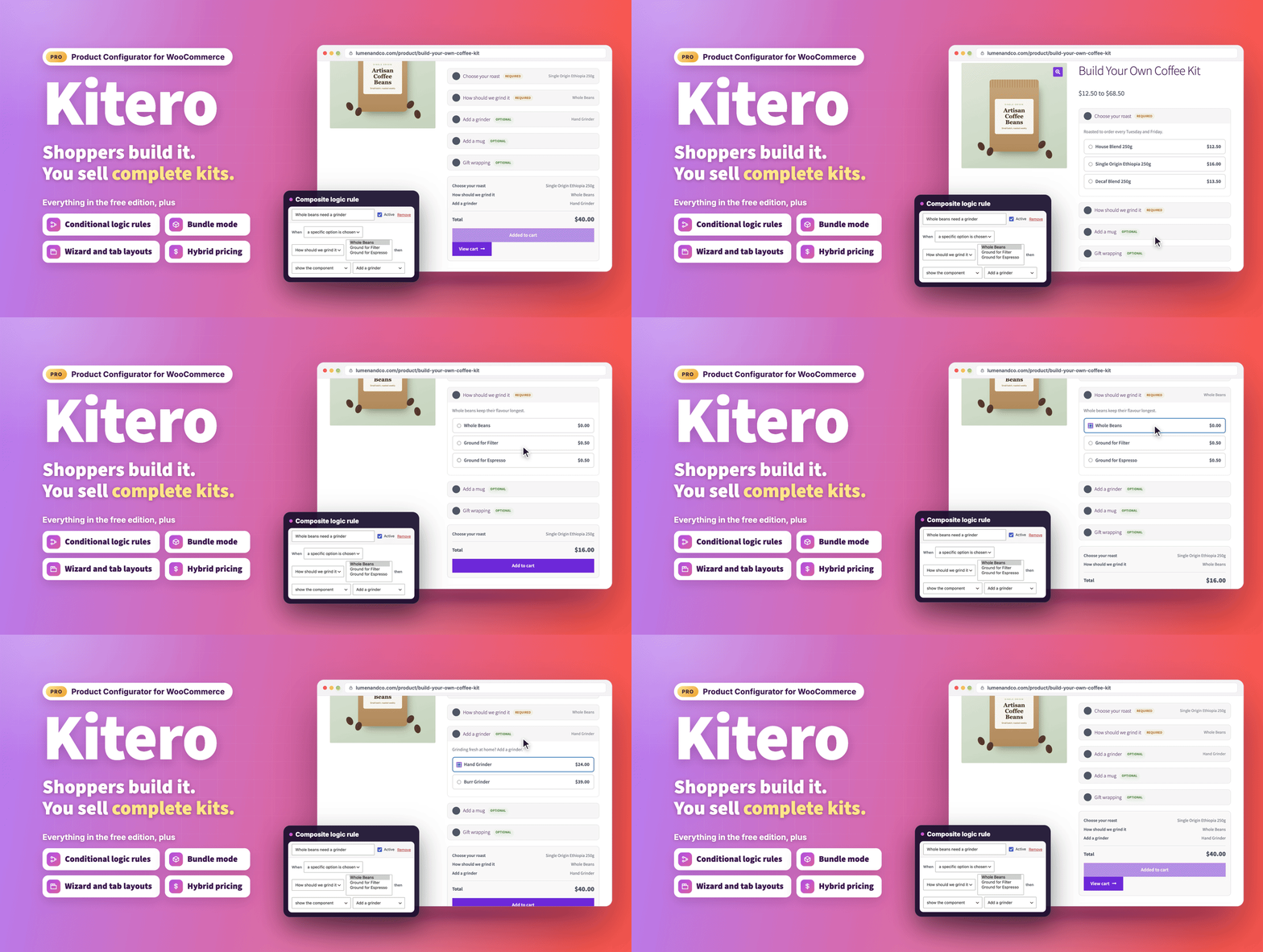
Overview
One product, every combination your customers want.
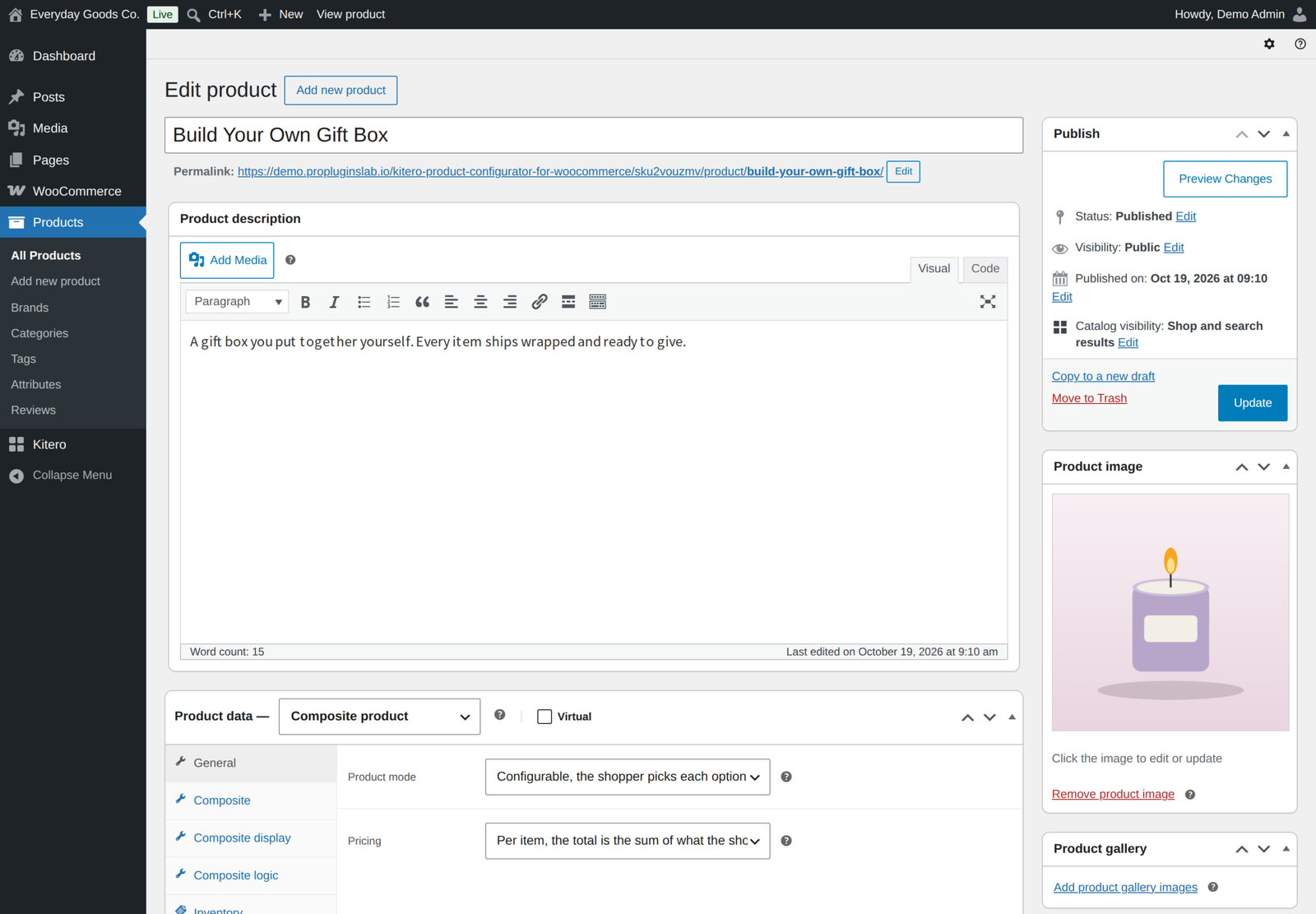
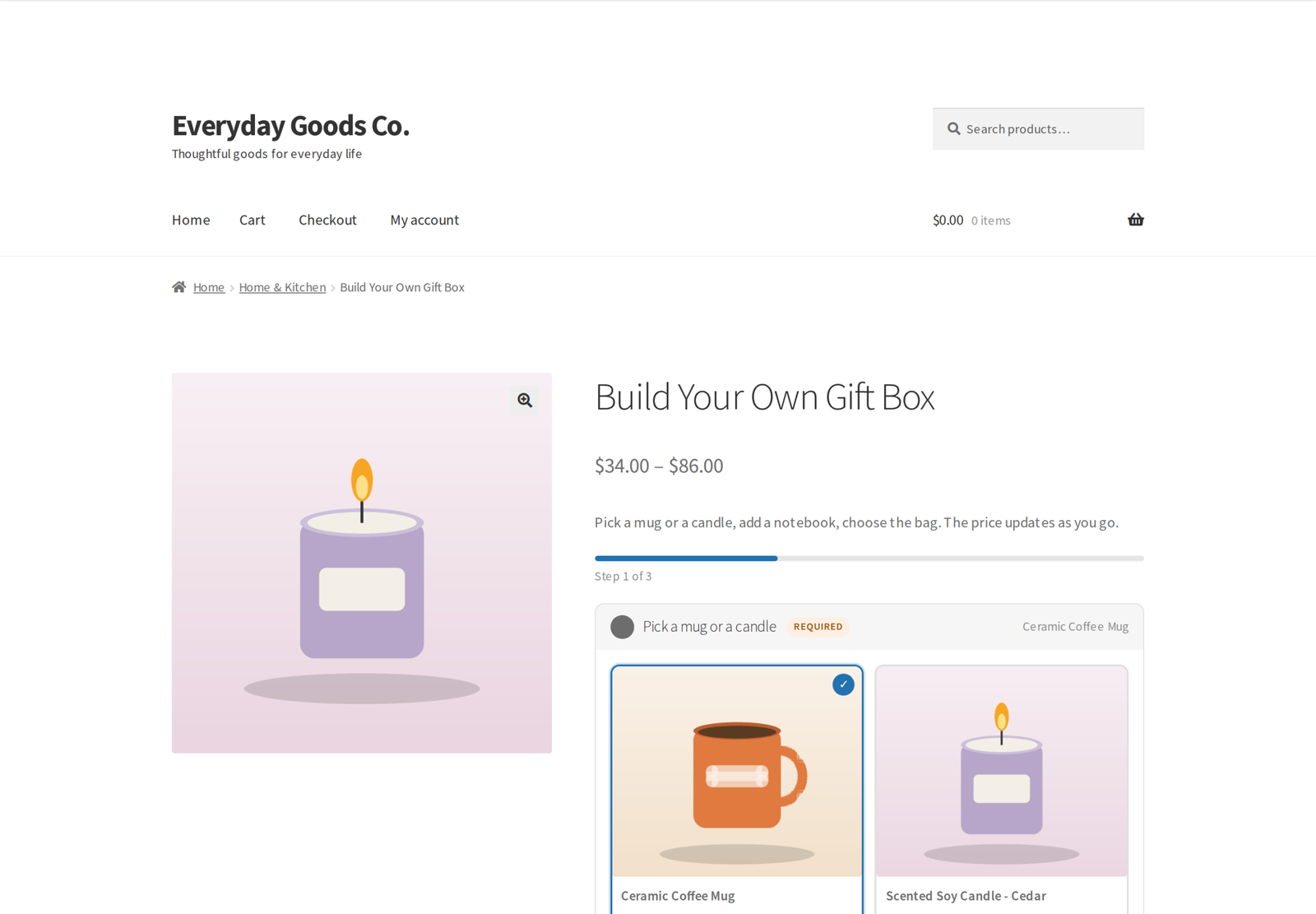
Kitero - Composite Products for WooCommerce lets customers build their own version of a product. You define the choices, called components, and the products that belong to each one. The customer picks from each component, watches the total update as they go, and adds the whole build to the cart in one click.
Take a gift hamper where the customer chooses the cheese, the wine and the chocolate. Instead of hundreds of variations, you create one product with three components. A PC builder works the same way, with components for the processor, memory, storage and case. Pro adds bundle mode, logic rules between components, fixed and hybrid pricing, your own price and a default choice per product, several choices in one component, a visual preview, two more layouts, ten more kit templates and a report on what customers really choose.
What's new in 1.4.0 (October 17, 2026)
- Your own price inside a kit. Type a price next to a product in a component to charge that price there, without changing the product itself.
- Default choices. Mark one product per component and it is already chosen when the page opens, and in bundle mode it is the one that goes in the box.
- Several choices in one component. Let shoppers pick, for example, any 3 of these 10, with a quantity per product if you like.
- Options from categories and tags. Offer every product in a category or tag, so new products join the kit on their own.
- Visual preview. Swap the main product image for the latest choice, or stack a layer image per choice on the product image.
- Edit from the cart, and Order again. Shoppers can reopen a kit from the cart to change it, and rebuild a past order with Order again.
- A wizard that checks each step. Next checks every required step, a step left empty opens when Add to cart is pressed, and Add to cart appears on the last step.
- Bundles show the saving. The product page shows how much the bundle saves against buying the items separately.
- Correct tax and stock. Tax is counted once whichever way your shop enters and shows prices, stock is counted across the whole cart, and refunds put components back.
- Insights in the menu. Insights now has its own item in the Kitero menu and a card on the dashboard.
The problem it solves
WooCommerce variable products work when the combinations are fixed and known in advance. Past two or three attributes the number of variations explodes, managing them becomes unworkable, and customers face a wall of dropdowns.
Kitero takes a different approach. You define what the options are, not every possible combination. The customer assembles their own version, and the plugin records what they chose, prices it correctly and sends it through to the order.
Who it is for
- Gift shops selling build your own hampers
- Food businesses selling meal kits or tasting boxes
- Electronics and PC stores selling custom builds
- Print shops offering personalised packs
- Subscription boxes where the customer picks the contents
- Any store selling a fixed, curated set of products at one price, using bundle mode
Building a composite product
Set the product type to Composite product and three tabs appear in the product data box: Composite, Composite display and Composite logic. The product mode and the pricing strategy sit on the General tab. Composite products also get the Inventory tab, the tax fields and the Virtual box, like any other product, and a kit with no weight of its own ships at the combined weight of its items.
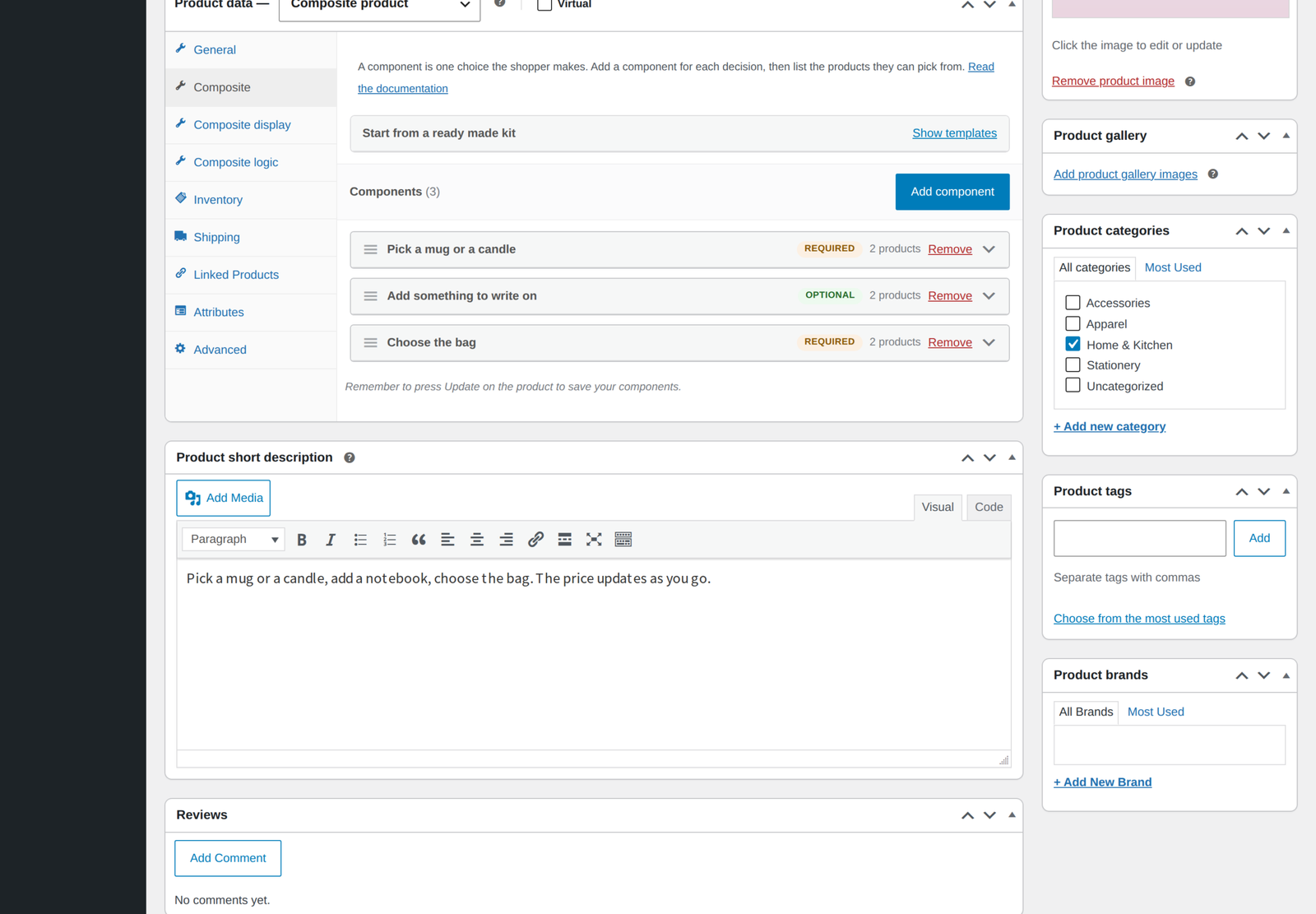
On the Composite tab you add components, give each one a name and a short description, and search for the products that belong to it. The search matches product names and SKUs, including variation SKUs, shows the SKU beside every result, and lists a variable product as its individual variations, so the customer always picks a real, purchasable item.
Each component has its own settings:
- Required or optional. A required component must be filled before the customer can add to cart. An optional choice can be cleared by clicking the selected option again.
- Minimum and maximum quantity, with optional plus and minus buttons on the product page.
- Option style. Thumbnails, cards, radio buttons or a dropdown, chosen per component.
- Price control. A percentage discount, a fixed discount, a percentage fee or a fixed fee on whatever is chosen in that component. A discount never takes a line below zero.
- Several choices. Let the shopper choose several products in one component, for example any 3 of these 10, with a quantity per product. The component minimum and maximum then count every item chosen.
- Products from categories and tags. Offer every published product in the categories or tags you pick, after the products you listed by hand, newest first and up to 100.
- Own price. Type a price in the Own price box next to a product to charge that price when it is picked in this component, without changing the product. Leave it empty to use the product price.
- Default choice. Mark one product to have it chosen when the page opens. The shopper can still change it.
Several choices, categories and tags, own prices and default choices are Pro options. Own prices, default choices and layer images are set on the products you listed by hand.
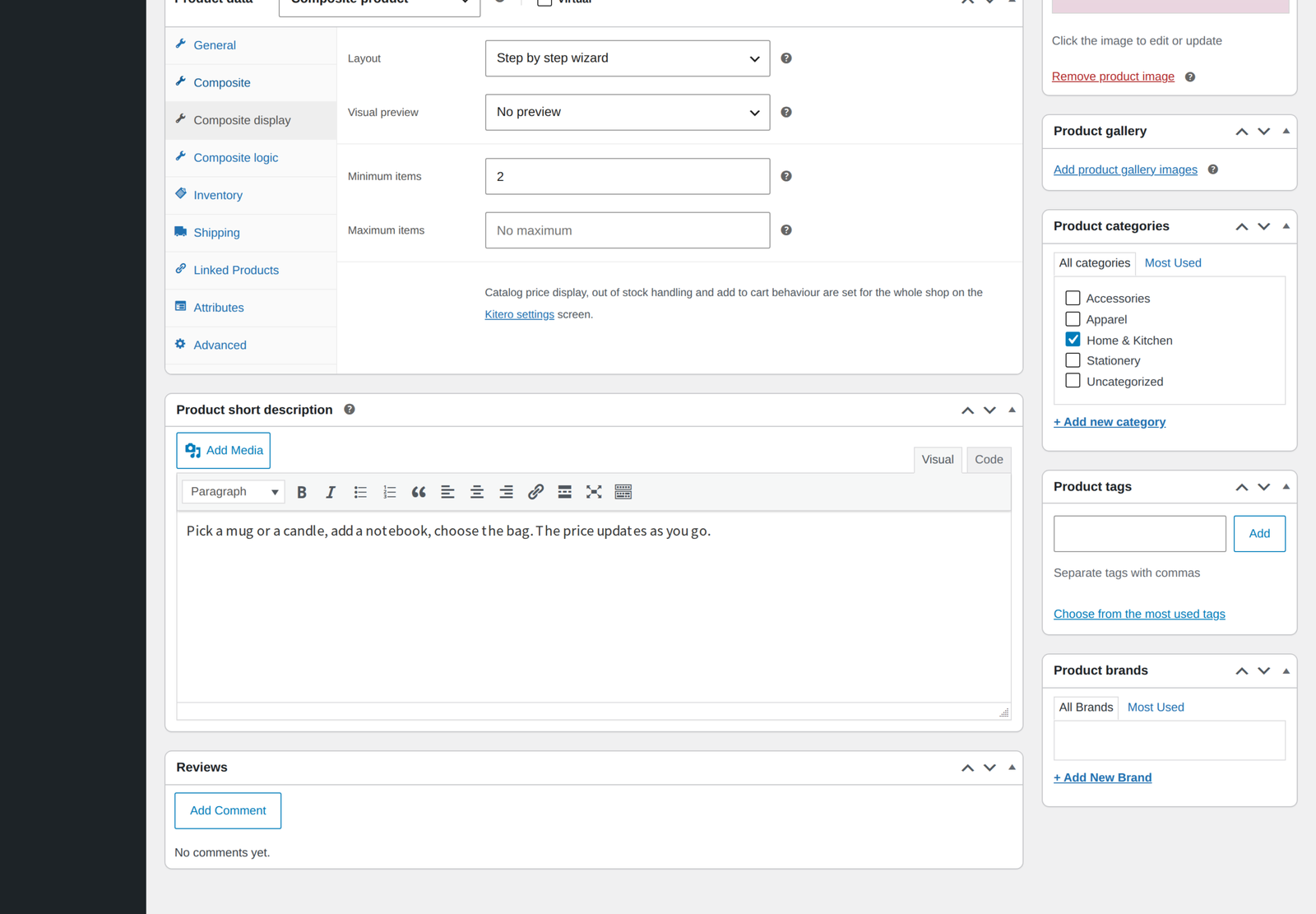
On the Composite display tab you choose the layout and can set a minimum and maximum number of items for the whole kit, for example a box of six. The product page shows the limit and a running count, and the cart checks it again. In Pro you also choose a visual preview there.
On the product page and in the order
- Live total. The price updates as the customer makes each choice.
- Add to cart without a reload. The build is added in one request, so mini cart and side cart panels open straight away. You can switch this off if your theme needs a full page load.
- Visual preview. In Pro, swap the main product image for the product picked last, or stack a layer image for each choice on top of the product image.
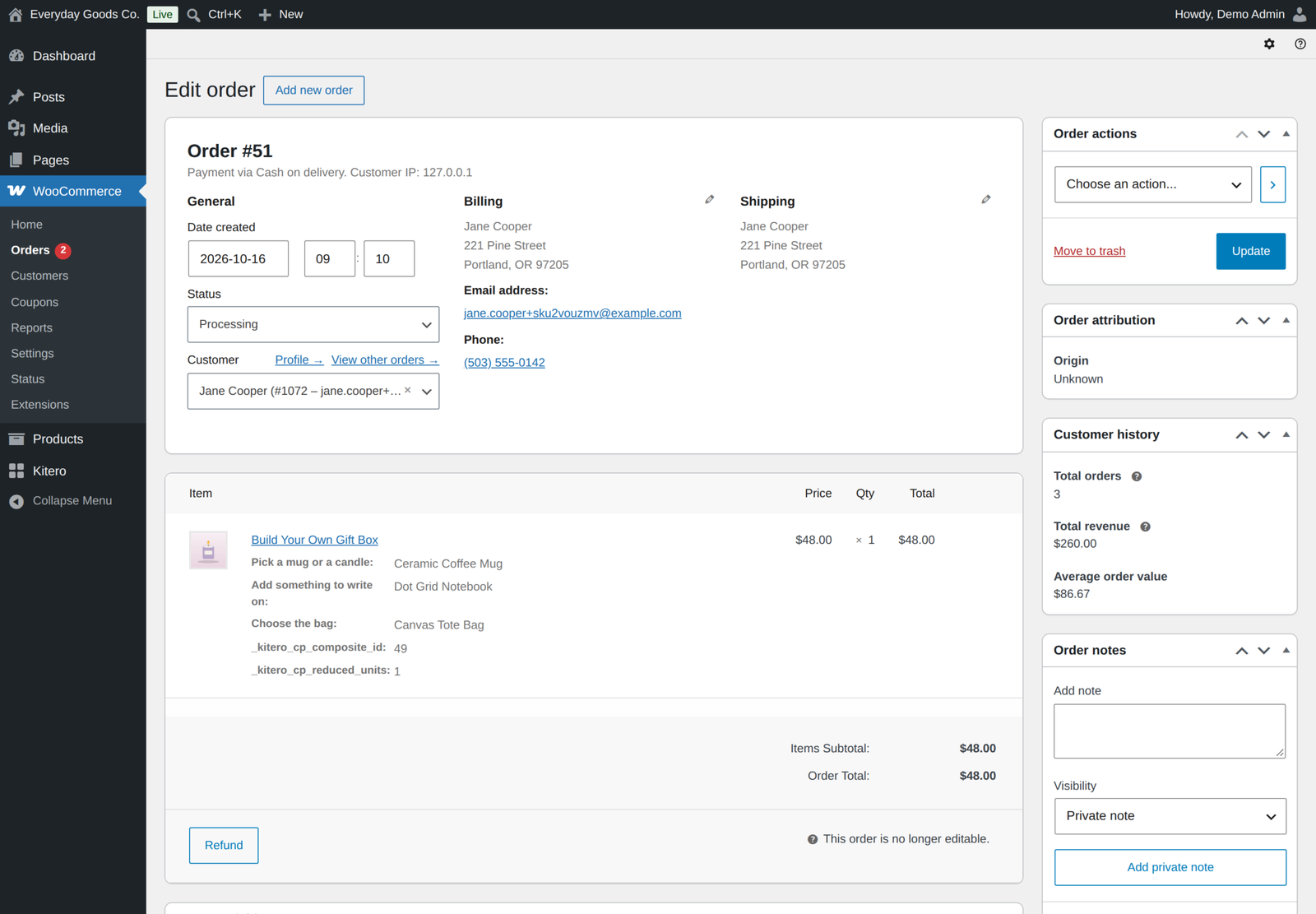
- Every choice recorded. Each selection is listed in the cart, at checkout, in the order and in the order emails, and you see the same breakdown in the order details.
- Edit from the cart. Each kit in the cart has an Edit link that opens the form with the choices filled in, and Update cart replaces the line.
- Order again. A past order with a kit can be added to the cart again, and every stored choice is checked first.
- Your own wording. Change the Add to cart button under the form and the Configure button on shop pages.
Pricing strategies
- Per item. The total is the sum of what the customer picks. Good for hampers and kits where each item has a real price.
- Fixed. One flat price whatever is picked. Good for a pick any three offer or a set menu.
- Hybrid. A base price with the chosen items added on top. Good for a base machine or service with paid upgrades.
Choose the strategy and base price per product on the General tab. Fixed pricing needs a base price above 0: without one the product cannot be bought, and the editor says so.
The Default pricing setting under Kitero, Settings only preselects the strategy on new products. Existing products without their own setting, for example ones built in the free edition, stay on per item pricing until you change them.
Component discounts and fees apply under Per item and Hybrid pricing, and are ignored under Fixed. In the catalog you can show a price range, a starting price, or no price at all. The catalog price, sorting and the price filter use the fixed, hybrid or bundle price.
Base prices and own prices are entered like any WooCommerce price, with or without tax as your shop is set up. The whole composite line is taxed once, with the tax class of the composite product, and product pages show every amount the way your shop shows prices.
Bundle mode
Set Product mode to Bundle and you decide the contents in advance. You build the components as usual, and each component puts its default product in the box, or its first product when none is marked as default. The product page shows a clean list of what is included, with the item count and a bundle total, and the customer adds it with one click.
- Required items are always in the box and cannot be removed.
- Optional items get a tick box so the customer can drop them, and the total follows.
- Quantities. The minimum quantity sets how many go in the box, and you can let the customer change it up to the maximum.
- Discounts and savings are visible. Where a component discount applies, the usual price is shown struck through beside the bundle price, and a You save line shows the saving against buying the items separately.
- Stock aware. An optional item that is out of stock is left out automatically. A required item that is out of stock marks the whole bundle out of stock, and another product is never swapped in.
A bundle shows one price in the catalog rather than a range, because its contents are fixed. The Add to cart text from Kitero, Settings is used on the bundle button too.
Logic rules
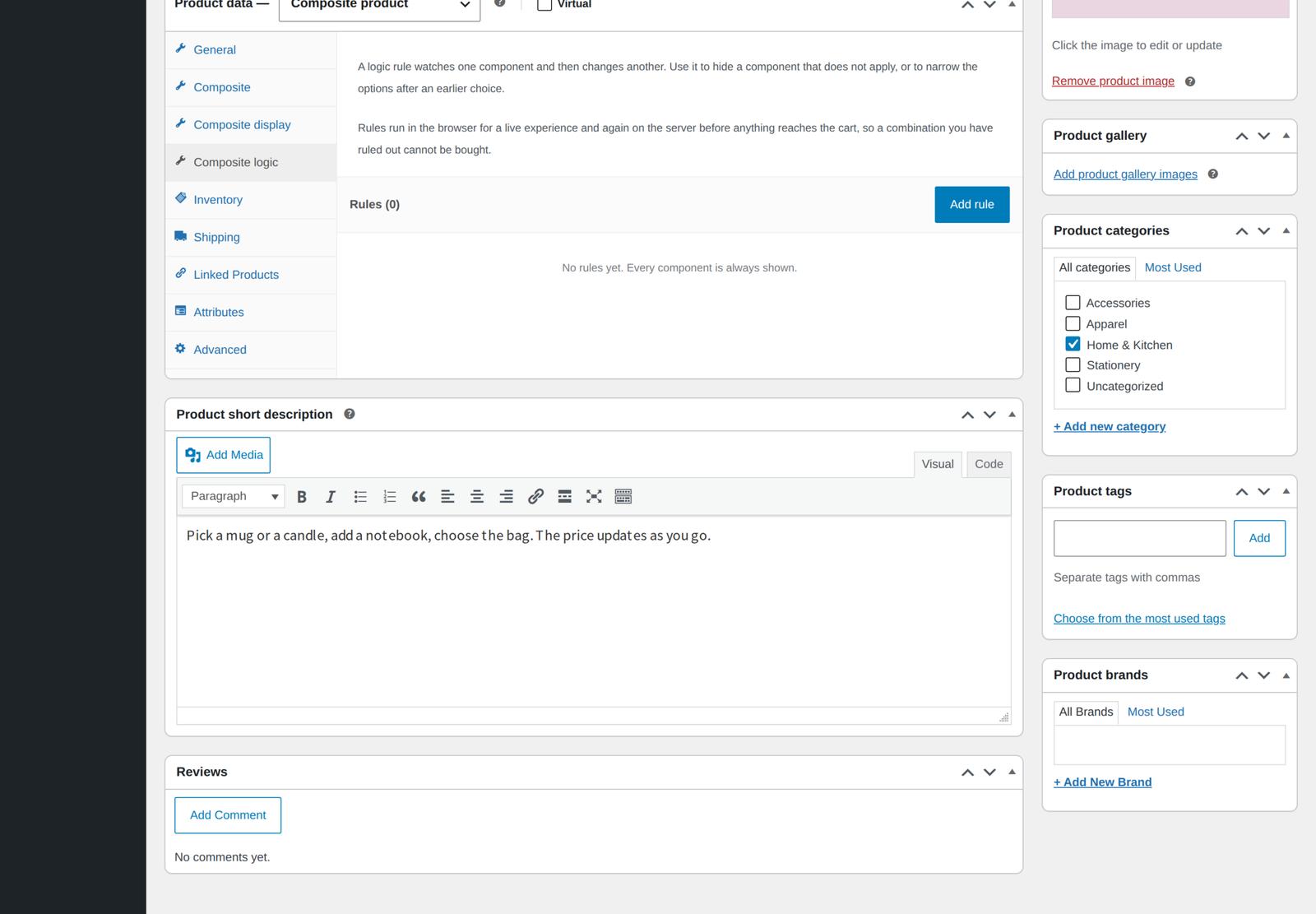
The Composite logic tab lets one component change another, so the options adapt to what the customer has already chosen. Each rule reads like a sentence: when something happens in one component, do something to another.
A rule can trigger when:
- anything is chosen in a component
- nothing is chosen in a component
- a specific option is chosen in a component
- a specific option is not chosen in a component
And it can:
- show the component, which is how you reveal a follow up question
- hide the component
- allow only the listed options
- remove the listed options
Rules run in the browser so the form reacts instantly, and again on the server before anything reaches the cart. A hidden component is never required, and an option a rule removed cannot be bought by editing the page. Because a rule points at a component by its ID, add your components and save the product once before linking them.
A rule needs two different components. The option lists include products that are out of stock today, so saving never drops an option from a rule, and when a component is removed, the rules that used it are deleted rather than moved to another component.
Layouts and option styles
Four layouts, set per product on the Composite display tab:
- All components visible. Everything on one page, stacked.
- Accordion. One section open at a time, which keeps a long build readable on a phone.
- Step by step wizard. One component at a time with a progress bar and Next and Previous buttons. Next checks that a required step is filled, Add to cart appears on the last step, and a step still missing at Add to cart is opened for the shopper. Components hidden by a rule are skipped, so the step count stays honest.
- Tabbed. One tab per component, so customers who know what they want can jump around freely. A required tab left empty is opened when the shopper presses Add to cart.
Each component also has its own option style, so different components on the same product can look different: thumbnails in an image grid, cards with image, name and description, compact radio buttons, or a dropdown.
Fifteen kit templates
Ready made kit templates build a whole product's components in one click, straight from the Composite tab. You then swap in your own products.
- Configurable kits: custom PC builder, gift box or hamper, meal kit, skincare routine, coffee or tea kit, custom bicycle, fashion outfit, furniture set, wedding package, made to order jewellery, office desk setup and pet subscription box.
- Kits that set themselves up: a ready made starter bundle in bundle mode, a pick any three for one price kit with fixed pricing, and a base price plus upgrades kit with hybrid pricing. The General tab shows their settings straight away, so pressing Update keeps them.
Composite insights
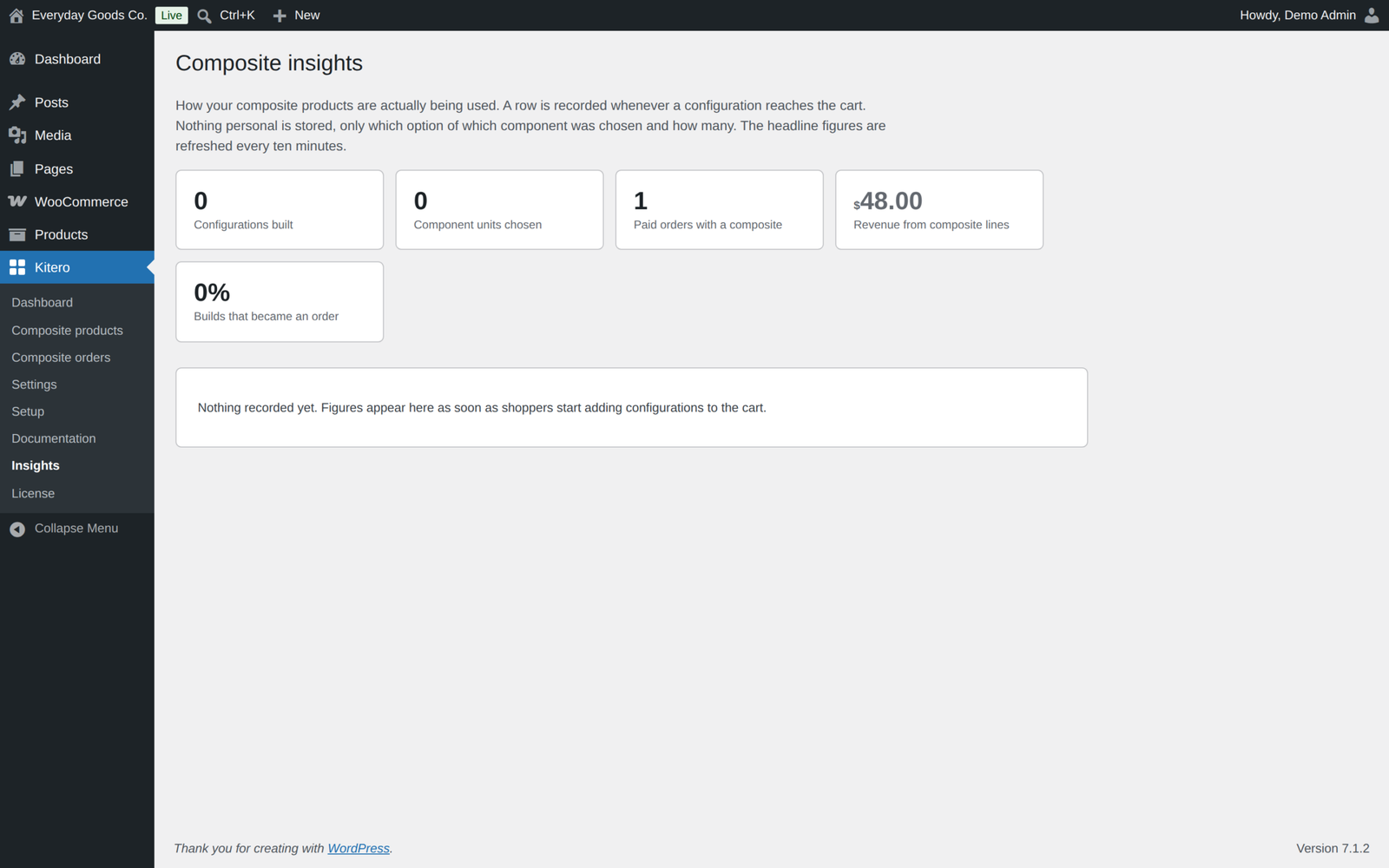
The Insights screen, under Kitero, Insights or from the dashboard, shows how your composites are actually used:
- Configurations built and component units chosen
- Paid orders with a composite and revenue from composite lines
- How many builds became an order
- A per product table with choices made, units, components used and when it was last built
- A share bar for every option, showing how often it wins its component
The headline figures are refreshed every ten minutes. A row is recorded when a configuration reaches the cart. Nothing personal is stored, only the component, the option and the quantity, and you can switch recording off in the settings or in the setup wizard.
Stock is handled properly
Stock lives on the products the customer picks, not on the composite parent. When an order reduces stock, each chosen item is reduced by its quantity and an order note records the change. Cancelling the order puts it back, and a refund with Restock refunded items ticked puts the components of the refunded kits back too.
Out of stock options cannot be selected. Stock is checked against the cart quantity and across every line in the cart, including the same product bought on its own, on the cart page and again before checkout. A composite shows as out of stock when a required component has nothing in stock.
The Kitero menu
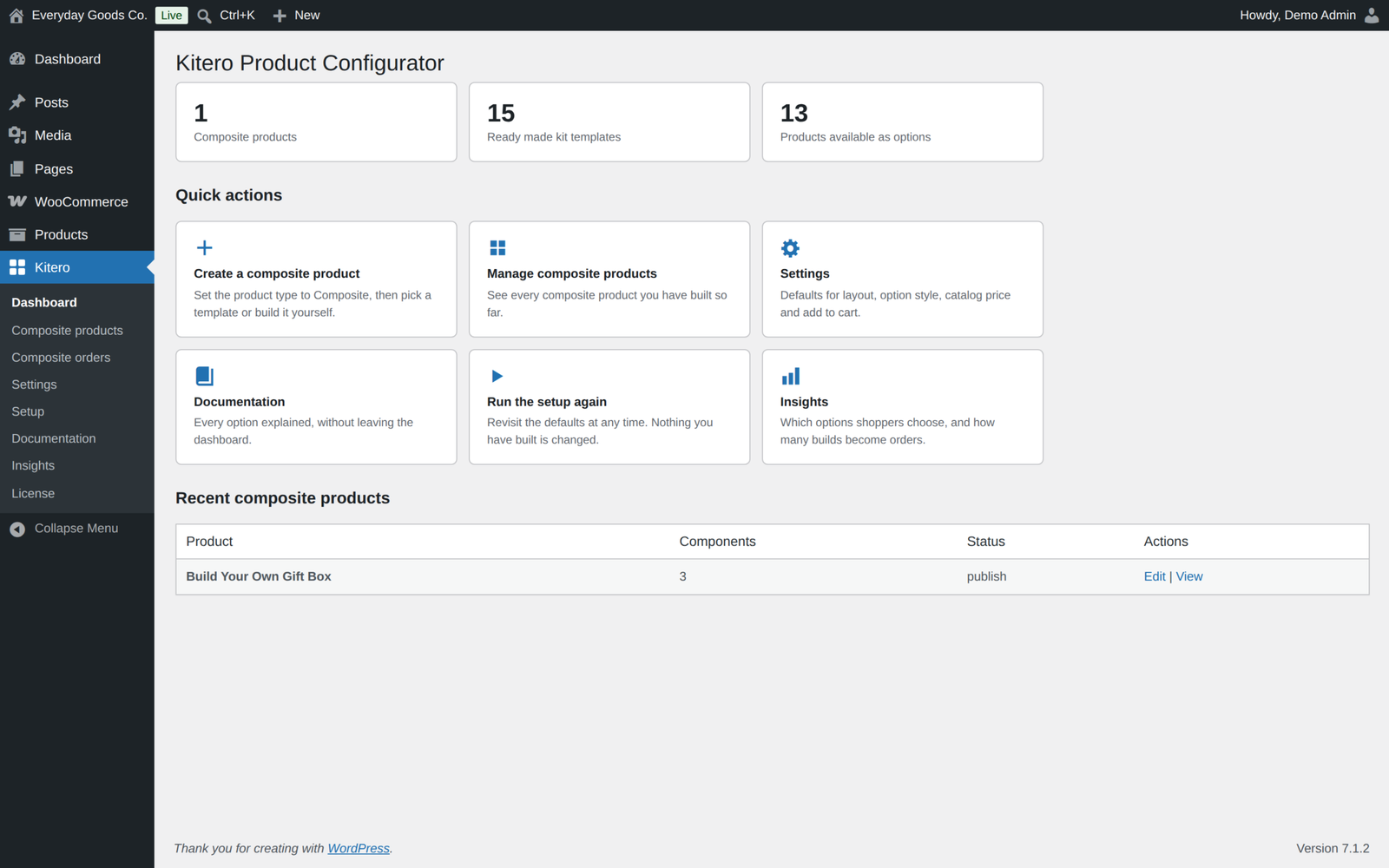
- Dashboard. A summary of your composite products, quick links to every screen and a link to Insights.
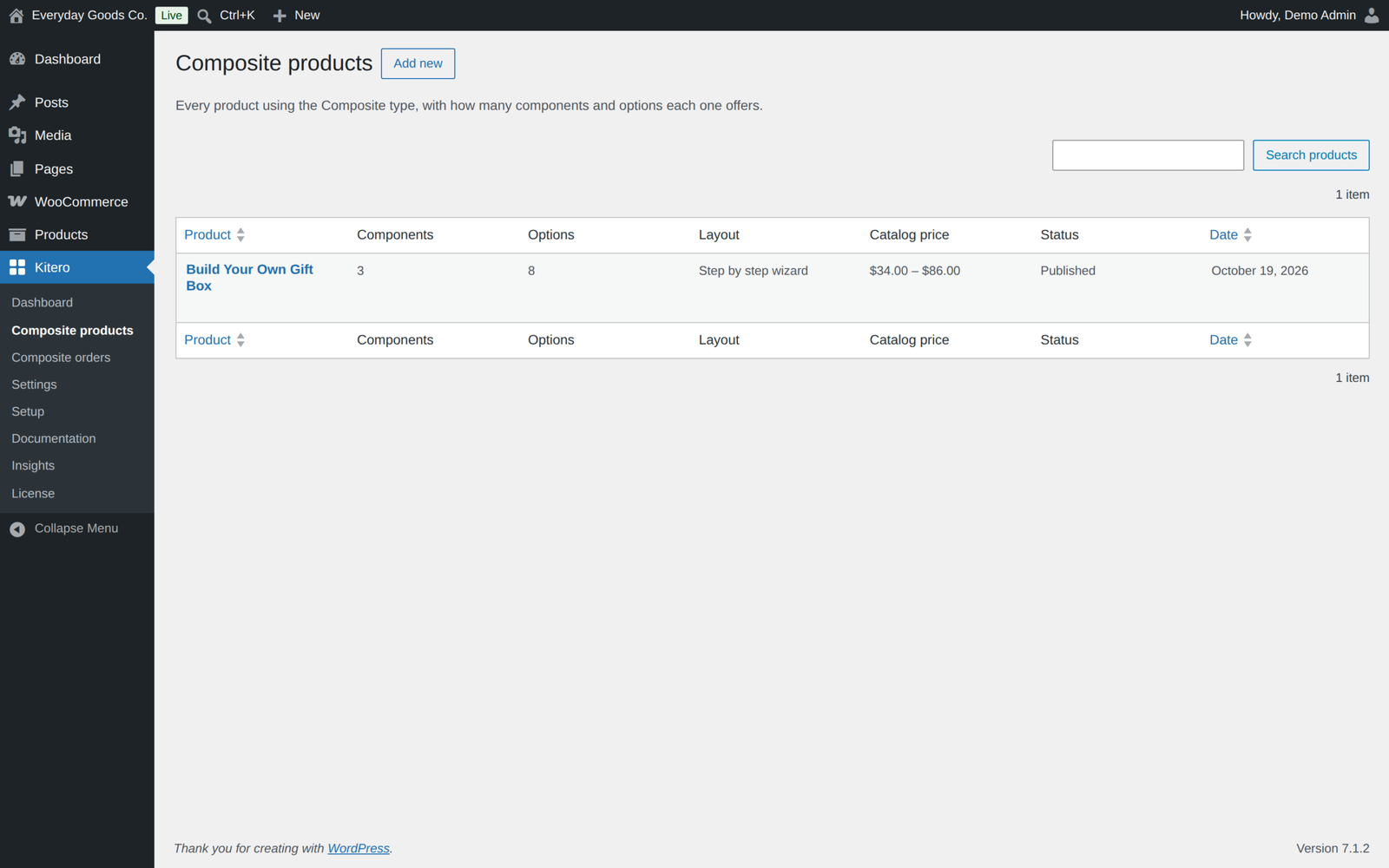
- Composite products. Every composite in one searchable, sortable list, with components, options, layout, catalog price and status.
- Composite orders. Orders that contain a composite, with the customer, the composite items and the total.
- Insights. The report described above, with its own place in the menu.
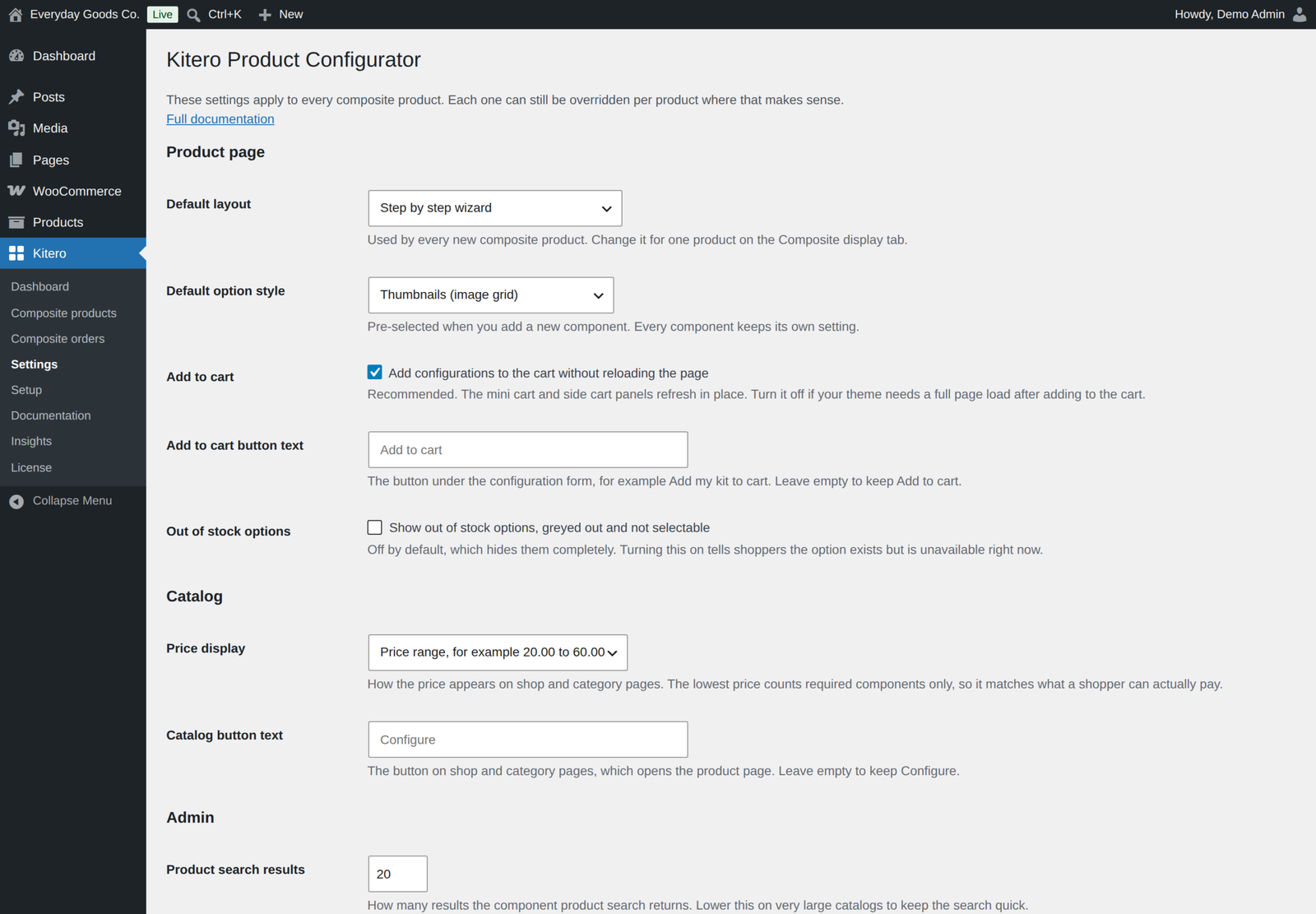
- Settings. Shop wide defaults: layout, option style, default pricing for new products, add to cart behaviour, button text, out of stock options, catalog price display, search result count and uninstall cleanup.
- Setup. A guided wizard for the first run, which also asks for the default pricing and whether to record Insights. You can run it again at any time.
- Documentation. Every option explained inside the admin.
- License. Where you enter your licence key for automatic updates.
Works with what you already run
- High Performance Order Storage, declared compatible, with order data stored through the WooCommerce CRUD layer
- Cart and Checkout Blocks, declared compatible, with Store API add to cart requests validated on the server
- Any theme. Copy
composite-form.phporbundle-form.phpintokitero-product-configurator/single-product/in your theme to change the markup, safe from plugin updates. Both templates changed in this release, so compare any copy you made earlier. - Shortcodes and page builders. The form works wherever WooCommerce prints the add to cart area, such as the
[product_page]shortcode or a page builder template. - Large catalogs. Component data is cached per request, and the product search result count can be lowered to keep it quick.
For developers
Over thirty hooks let you extend components, options, pricing, layouts, templates, settings and the cart, including kitero_cp_components, kitero_cp_component_options, kitero_cp_price_breakdown, kitero_cp_price_html, kitero_cp_catalog_price, kitero_cp_cart_item_data, kitero_cp_added_to_cart, kitero_cp_templates and kitero_cp_product_duplicated. The main hooks are listed in the built in documentation.
Free and Pro
In both editions:
- Composite product type with unlimited components and unlimited products in each
- Product search by name and SKU, including variation SKUs
- Four option styles: thumbnails, cards, radio buttons and dropdown
- Required and optional components, with quantity ranges
- All visible and accordion layouts
- Per item pricing and component price control
- Minimum and maximum items for the whole kit
- Live totals, add to cart without a reload, and full cart, checkout, order and email output
- Edit a kit from the cart, and Order again from a past order
- Correct tax whichever way your shop enters and shows prices
- Component level stock handling with order notes, cart wide stock checks and restock on refund
- Inventory tab, tax fields and the Virtual box for composite products
- Your own Add to cart and catalog button text
- Duplicate a composite product with its components
- Five kit templates, the setup wizard, list screens and built in documentation
Only in Pro:
- Bundle mode, with optional items the customer can drop and the saving shown
- Fixed and hybrid pricing
- Your own price per product inside a component
- Default choices
- Several choices in one component
- Options from categories and tags
- Visual preview
- Logic rules between components
- Step by step wizard and tabbed layouts
- Ten more kit templates, fifteen in total
- Composite insights, in the Kitero menu and on the dashboard
Moving from the free edition
Pro is a complete plugin that contains everything in the free edition, so you do not need both. Both editions use the same tables and settings, so your components, products and settings are kept exactly as they were. While Pro is active the free edition stays idle and shows a notice so you can deactivate it. Pro never switches another plugin on or off.
You can go back at any time. Deactivate Pro and activate the free plugin, and your components and settings stay. Pro only settings, such as logic rules and the pricing strategy, are kept in the database but stop being applied.
Privacy
Kitero Pro only contacts the ProPluginsLab update server after you enter a licence key, to validate it and check for new versions. It sends the licence key, the product id, your site address and the installed version. There is no tracking, analytics or telemetry, and the Insights report is built from your own database only.
Demo and documentation
Requirements
- WordPress 6.4 or newer, tested up to 7.1
- WooCommerce 8.0 or newer, tested up to 11.2.1
- PHP 7.4 or newer
Licence
A one-time payment with lifetime updates. The licence controls automatic updates, not features: every Pro feature keeps working with or without an active licence.
Frequently asked questions
Do I need the free plugin as well?
No. Pro contains everything the free edition does. While Pro is active the free edition stays idle and asks you to deactivate it.
Will I lose my components if I move from free to Pro?
No. Both editions use the same tables and settings. Pro adds its own columns to the existing tables without touching the data already there.
Can a component use variations of a variable product?
Yes. A variable product is listed as its individual variations, so the customer picks a concrete, purchasable item and stock stays accurate. Set every attribute on a variation you use as an option: a variation set to Any for an attribute has no value to pass on, so the order shows it without that attribute.
Is the price calculated from what the browser sends?
No. The browser only sends which option was picked and how many. The price is worked out on the server from current product prices, and your own prices where you set them, every time the cart is calculated.
What happens if an option sells out after it was added to a cart?
The cart is checked again on the cart page and before checkout, and the customer is told which item is unavailable so they can pick something else.
Changelog
Every release, newest first, with the date it came out.
Version 1.4.0 (October 17, 2026)
- New: per option price overrides have their own Own price box next to each product on the component card. Leave it empty to use the product price.
- New: default choice per component, chosen when the product page opens. In bundle mode it is the product that goes in the box.
- New: several choices in one component, for example "any 3 of these 10", with an optional quantity per product. The component minimum and maximum count every item chosen.
- New: offer every product in chosen categories or tags, after the products listed by hand.
- New: visual preview on the Composite display tab. Swap the main product image for the latest choice, or stack a layer image per choice on the product image.
- New: Edit a kit from the cart and Order again from a past order.
- New: the step by step wizard checks a required step before moving on, opens a required step left empty when Add to cart is pressed, and shows Add to cart on the last step. The tabbed layout opens the tab too.
- New: bundles show the saving against buying the items separately, and use your own Add to cart text.
- New: Insights is in the Kitero menu and on the dashboard. The setup wizard asks for the default pricing and the Insights recording.
- New: composite products get the Inventory tab, the tax fields and the Virtual box.
- Fix: bundles can now be added to the cart from the browser, not only without JavaScript, and the bundle quantity buttons move one step per click.
- Fix: prices are no longer taxed twice, or left untaxed, when the shop enters prices without tax and shows them with tax, or the other way round. Base prices and overrides are shown with tax the same way as product prices.
- Fix: fixed pricing without a base price can no longer sell for 0.00. The product cannot be bought until a price above 0 is entered, and the editor says so.
- Fix: the Default pricing setting only preselects the field on new products. Existing products without their own setting stay on per item pricing.
- Fix: component stock is checked against the cart quantity and across every cart line, and Restock refunded items puts the components of a refunded kit back.
- Fix: saving a product no longer clears price overrides and default items.
- Fix: the three self configuring templates keep their bundle and pricing settings when the product is updated.
- Fix: logic rules keep options that are out of stock today, and rules on a removed component are deleted instead of being moved to another component. A rule needs two different components.
- Fix: a bundle whose required item is out of stock shows as out of stock instead of shipping a different item.
- Fix: the catalog price, sorting, the price filter and the Store API use the fixed, hybrid and bundle price instead of the per item minimum.
- Fix: Insights figures are cached for ten minutes, and the conversion counts every kit on an order.
- Fix: the configuration form now works wherever WooCommerce prints the add to cart area, such as the [product_page] shortcode or a page builder template, not only on the product page.
- Improved: removed an unused share setting and unused editor strings.
- Tested with WordPress 7.1.3 and WooCommerce 11.2.1.
Version 1.3.1 (October 16, 2026)
- Fix: with a logic rule on the product, the step by step wizard and tabbed layouts no longer show every component again after the first choice. The shopper stays on the current step.
Version 1.3.0 (October 15, 2026)
- New: duplicating a composite product (Duplicate on the Products list, or Copy to a new draft) now copies its components, their products, per option price overrides, default items and logic rules to the new draft.
- Security hardening: a composite can only reach the cart with a validated configuration, including through add to cart links, the Store API and order again; cart prices are recalculated on the server on every pass.
- Security hardening: bundle contents are checked on the server, and a choice made in a hidden component no longer fires a logic rule.
- Pro no longer switches the free edition off. The free edition stays idle while Pro is active and shows a notice on the Plugins screen so you can deactivate it.
- Uninstalling Pro keeps the shared data while the free edition is installed.
- Readme: External services section for the licence and update checks.
- The logic rule option list is passed to the editor through a data attribute instead of a printed script tag.
- Tested with WordPress 7.1.3 and WooCommerce 11.2.1.
Show earlier versions (1.0.0 to 1.2.1)
Version 1.2.1 (September 2026)
- Fix: the changelog now says where to enter the license key: License in this plugin's menu.
- Tested with WordPress 7.1.1 and WooCommerce 11.1.1.
Version 1.2.0 (September 2026)
- New: automatic updates. Enter your license key under License in this plugin's menu, and new versions appear on the Plugins screen like any other update.
- New: with more than one ProPluginsLab plugin installed, WooCommerce, Licenses also lists them all in one place. The Plugins screen shows a reminder until a key is activated.
- New:
wp ppl-licensecommands (list, activate, deactivate, check) for managing keys from WP-CLI. - Pro features keep working with or without an active license; the license only controls automatic updates.
Version 1.1.0 (September 2026)
- New: minimum and maximum items for the whole kit, on the Composite display tab. The product page shows the limit and a running count, and the cart checks it again.
- New: set your own Add to cart and catalog button text under Kitero, Settings.
- Removed an unused licence key option. A separate update manager plugin will handle licences later.
- Links moved to propluginslab.io.
- Tested with WordPress 7.1.1 and WooCommerce 11.1.1.
Version 1.0.0 (August 2026)
- First release.
Details
At a glance
- Latest version
- 1.4.0
- Last updated
- October 19, 2026
- Type
- Pro plugin
Requirements
- PHP version
- 7.4
- WordPress (min)
- 6.4
- WordPress (tested)
- 7.1
- WooCommerce (min)
- 8.0
- WooCommerce (tested)
- 11.2.1
Share
You might also like
 CodeCanyon
WooCommerce Hide Products
$15.00
 Pro
Pro
Inputo Name Your Price for WooCommerce
Let customers name their price on WooCommerce products, guided by your minimum and suggestion. Includes quick amounts, rules, Subscriptions, currency switchers and reports.
From $39.00 One-time
Live demo-
Pro
Presentero Gift Cards for WooCommerce
Sell and redeem WooCommerce gift cards online or in your shop, with PDF cards, QR codes and scheduled delivery. Includes refunds, automations and reports.
From $49.00 One-time
Live demo